
For step-by-step sign-in and home-screen installation, follow Connect your phone.
The browser decrypts stored sessions locally using the keys available to this registered device. A session link alone does not grant access. Learn how device and workspace access work together.
Open the Web app#
Go to app.ondago.ai and sign in to the account used on your computer. Complete the browser’s device registration and workspace access prompts. Each browser profile is its own device.
You can also open a session link from Desktop or scan the QR code printed by the CLI. Signing in does not make a local agent run in the browser: the agent continues on the computer or cloud environment shown by the session.
Add Ondago to your home screen#
The Web app can be used directly in a browser. Where your browser supports app installation, use its install or Add to Home Screen action. On iPhone or iPad, look in Safari’s Share menu; on Android, look in your browser’s menu. Desktop browsers may show an install icon in the address bar.
Browser labels and installation availability vary. If you do not see an install action, bookmark the Web app. Installation does not make cloud or remote sessions available offline.
Start a new session#
View planned changes for Start a new session. Availability depends on the released app and host versions.
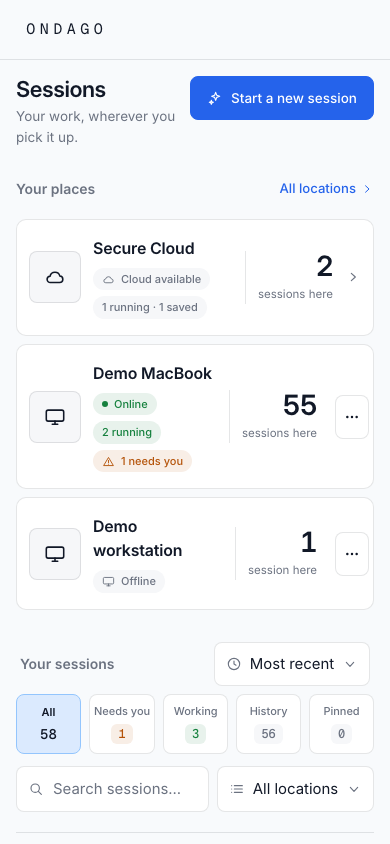
Find your session on a phone#
- Select the workspace that owns the session.
- Open Sessions and choose the computer or cloud location.
- Search for the session title, then tap its row.
- Use the details sheet to inspect it and open the conversation.
Continue the conversation#
View planned changes for Continue the conversation. Availability depends on the released app and host versions.
Keep writing while a session connects#
View planned changes for Keep writing while a session connects. Availability depends on the released app and host versions.
Use agent slash commands#
- In a connected session, type
/at the start of the composer to see the commands offered by that agent and connection. - Type part of a name to filter the menu. Tap a command, or use the arrow keys and Tab to select it.
- Add any arguments, then use the composer’s send action. Choosing a suggestion fills the draft; it does not run the command.
The same command menu is available in Desktop. Available commands differ from the agent’s full terminal interface: Claude Code offers supported commands and discovered project or user commands and skills; Codex offers discovered skills on compatible connections; OpenCode and compatible ACP agents supply their own catalogs. Interactive terminal-only menus may not be available, and Antigravity’s headless connection does not support agent slash commands.
If a command is unavailable or the agent must finish its current turn first, follow the composer’s explanation. For example, Claude commands run between turns. /model uses Ondago’s model controls. To send text beginning with a literal slash on a structured connection, start it with //; Ondago sends one slash as ordinary text. A mirrored terminal follows its own line editor.
Answer approvals and MCP questions#
View planned changes for Answer approvals and MCP questions. Availability depends on the released app and host versions.
Join an Agent Discussion#
Open the discussion from Sessions to follow each participant’s contributions from your browser or phone. With control, you can stop or continue the discussion, edit a direction, and choose a lead builder. The agents run at the location shown for the session. Read the Agent Discussion guide.
Read a saved session#
A saved session is a snapshot. Open it to read the transcript or inspect its review. To send new work, use an available continuation action. For a local session, an offline source computer must reconnect before it can serve fresh content or accept messages.
Read synced conversations while your computer is offline#
View planned changes for Read synced conversations while your computer is offline. Availability depends on the released app and host versions.
Browser storage and access#
Ondago keeps this browser’s device keys locally. Clearing site data, switching browser profiles, or using a new device can require registration and key recovery again. Keep your recovery kit somewhere private and accessible outside this browser.