
These notes describe planned behavior. They do not promise a release date or change the availability of your installed version. Follow the linked guides for current instructions.
Connect your phone: Planned update#
Upcoming update: if your phone loses the connection, the session says it is reconnecting to your computer and keeps running there, the header shows what was last seen (for example Last seen working · 2 min ago), and a message you send meanwhile waits as Sends when reconnected until the session is back (you can cancel it). If the session cannot be reached and your computer is online, the page reconnects to it by itself; if your computer is offline, it says so with the time it went offline (for example Work Mac is offline since 02:14) and keeps checking. With the matching CLI and Desktop update, Ondago keeps your computer from idle sleep while a session is working or open on your phone, following Keep this computer awake under Settings → Phone access (on AC power by default). Closing the lid still puts it to sleep.
Connect your phone: Planned update#
Upcoming update: a session usually notices a lost connection within 20 seconds (at most about half a minute), or at once when your device reports it is offline, and says it is reconnecting instead of showing a technical error. A message you sent just before the loss was noticed also waits as Sends when reconnected and is delivered in the order you typed it, in the web app and in Desktop. Connection notices clear once Ondago reaches the server or your computer again.
Connect your phone: Planned update#
Upcoming Web and Desktop update: an open session stays connected when you switch to another browser tab or window and come back, instead of showing Reconnecting each time. After a longer absence (for example a locked phone, or a tab left in the background for several minutes) it may reconnect by itself first, as it does today.
Connect your phone: Check provider usage#
Check provider usage#
In the next app update: mobile Overview shows a compact horizontal Provider usage strip for Claude, Codex, and Antigravity when an updated, signed-in Ondago Desktop shares a report. Each provider’s icon shows its used percentage. Tap it to see the provider name, reported allowances, reset times, last check time, and source computer. Percentages describe what is used, not what remains.
Usage is account-wide and separate from Ondago cloud limits. Different computers may use different provider accounts, so their reports stay separate. Keep the reporting computer awake and online with Ondago Desktop running for fresh readings. You can still read its last synced report while it is offline. Offline or older readings are labeled as last reports; unavailable usage is never shown as zero. Refresh reports retrieves the latest computer reports. Provider checks run periodically and respect the agents you allowed Ondago Desktop to access. Account emails and credentials are not included in these encrypted reports.
Security at Ondago: Temporary reading copies are private to the computer owner#
Temporary reading copies are private to the computer owner#
Desktop syncs encrypted reading copies of recently active conversations using the owner’s personal vault. In the upcoming history-access update, this covers only agents you allow: Ondago reads no agent history until you choose which agents to allow, and that reading happens on this computer. Conversation content, titles, paths, and image metadata remain encrypted. Another registered browser belonging to that owner needs personal-vault key access to decrypt them; membership in a shared workspace does not grant access to these copies.
Server access to a reading copy expires 72 hours after the conversation’s latest source activity. Reading it does not extend that window. This expiry does not delete the original agent conversation or change retention of an explicitly saved bundle, and cannot erase content already downloaded by a device. Read the synced-conversation guide.
Install the CLI: Remove Ondago from this computer#
Remove Ondago from this computer#
Upcoming CLI update: one command removes Ondago from this computer.
ondago uninstallQuit Desktop first. The command stops Ondago’s background service and the sessions it started, then lists everything it will remove and asks before removing anything:
- Ondago’s local data, including this computer’s device key. Sessions sealed only to that key can no longer be opened here, and a cloud run you have not collected can no longer return to this computer.
- Desktop, on macOS and Windows.
- The hooks Ondago added to Claude Code, Codex, Copilot CLI and OpenCode, and the slash commands it installed for your user.
- The
ondagoprogram in the installer’s location. On Windows, that folder also leaves your user PATH. A copy installed another way, for example with Homebrew, is kept and named with the command that removes it.
Answer n to review the list without changing anything. From a script, use ondago uninstall -yes. Agent sessions that were already open keep Ondago’s hooks until you restart them.
Your account is not changed. To remove this computer from it, use the web app or Desktop on another computer: remove it in Settings → Devices, and forget it in Manage computers. Slash commands installed into a repository stay; run ondago commands uninstall -project in that repository before you uninstall.
CLI how-to guides: Planned update#
Upcoming update: Ondago Desktop adds its hooks only to the agents you allow in Settings → Privacy, and each time you save that choice it removes Ondago’s hooks from the agents it does not allow, including hooks added with ondago init-hooks. If you use Desktop, allow the agent there first.
CLI how-to guides: Planned update#
Upcoming CLI update: local project recovery backups will honor your Git ignore rules, including nested .gitignore files and ! exceptions. Ignored files such as .turbo, node_modules and local configuration will be omitted from new backups and left in place during rollback. They cannot be recovered from those backups. Existing recovery backups will not be automatically reduced or deleted.
CLI how-to guides: Planned update#
Upcoming CLI update: work the agent does in a Git worktree inside a cloud run comes home with the rest of the run’s work, including for a run started from a connected GitHub repository: in your folder, or in the separate folder described under Bring cloud work back to your computer. The session resumes where the work landed. A worktree’s commits arrive as changes, not as commits, and the worktree’s own directory is not recreated on your computer. If a worktree’s changes do not fit beside the rest of the run’s files, they are left out as a whole and the result says so, rather than dropping part of them or the run’s other work.
Configuration: Planned update#
Upcoming update: on a Mac, the CLI follows the proxy set in your network settings, including its list of hosts to bypass, unless HTTPS_PROXY or HTTP_PROXY is set. That covers commands you run, the ones Desktop runs for you, and the background machine service. An exported proxy variable takes precedence, NO_PROXY still sends the hosts it names directly, and localhost always connects directly. The CLI cannot read an automatic proxy configuration (PAC) file: on a Mac that uses one, a failed connection says so, and you can set HTTPS_PROXY to the proxy that file names. The background machine service does not read variables from your shell profile. A proxy that needs a user name and password is also set with HTTPS_PROXY. Windows and Linux use the proxy variables only.
Full command reference: Find a command#
Find a command#
| Command | Use it to |
|---|---|
agent-host | Advanced: expose local structured agent control over newline-delimited JSON packets. |
antigravity-connect | Upcoming: connect the current Antigravity conversation for permission decisions. |
brain | Search, preview and apply workspace and project knowledge for a coding agent. |
codex | Open a native Codex terminal that Ondago can also control. |
commands | Install or remove Ondago commands in agent tools that have a command mechanism. |
config | Read and change CLI defaults. |
delete | Delete a stored bundle; the agent’s local session is untouched. |
delete-session | Permanently delete the agent’s own local session copy. |
detect | Find agent sessions associated with a project. |
devices | List registered devices, complete device verification, transfer workspace keys, or revoke a device. |
fork | Copy a local session up to one of your turns, keeping the original. |
handoff | Ask a running agent to stop at a safe boundary and transfer the session. Run this from a second terminal. |
harness | Inspect, export, compare, and apply agent configuration such as instructions, tools, hooks, and permissions. |
init-hooks | Install the agent hooks used to record permission prompts and support handoff. |
keys | Manage this device’s encryption identity and workspace recovery. |
lift | Capture and encrypt a session, store it, and attempt cloud continuation unless disabled. |
limits | Show usage and workspace allowances. |
list | List stored bundles. Titles decrypt on this device. |
live | List currently served sessions across your machines. |
login | Sign in and register this computer. |
logout | Forget the saved sign-in credential, active workspace, and machine session state. The device key remains on disk. |
machine | Manage the persistent local service and remote access. |
migrate | Copy a local session into another supported agent, with a compatibility report. |
pull | Bring a stored bundle into a project directory. |
resume | Pull a bundle and hand control to the vendor CLI in this terminal. |
review | Open a local review or manage review requests and discussion. |
runs | Inspect remote runs and why they ended. |
send | Send one message to a running session. |
serve | Host a local agent session so another device can interact with it. |
show-patch | Print the uncommitted changes captured in a bundle. |
terminal | Discover, capture, attach to, or launch terminal targets supported by this machine. |
uninstall | Upcoming: remove Ondago from this computer, including Desktop and what it added to your agents. |
update | Check for, install, or pin a published CLI release. |
version | Print the installed version and build variant. |
workspaces | List workspaces available to your account. |
Full command reference: Planned update#
Upcoming update: if you use Ondago Desktop, allow the agent in Settings → Privacy first. Desktop adds hooks only to allowed agents, and saving that choice removes Ondago’s hooks from the others, including hooks added with ondago init-hooks.
Full command reference: ondago antigravity-connect#
ondago antigravity-connect#
Upcoming: connect the current Antigravity conversation to Ondago for permission decisions.
ondago antigravity-connectWhen Ondago asks for this helper, ask Antigravity to run it inside the conversation you want to connect, then select Check again in Ondago. It takes no arguments. Running it in a separate terminal cannot identify the original session. The helper does not change permission settings.
Full command reference: Planned update#
Upcoming update: -tools claude-code,codex installs or removes the hooks of the named agents only (claude-code, codex, copilot or opencode), and -json lists each file it changed. -h prints help, and an unknown flag is refused, without changing any file. If you use Ondago Desktop, allow an agent in Settings → Privacy before adding its hooks: saving that choice removes Ondago’s hooks from the agents it does not allow. The hooks also check that choice every time they run, so an agent you revoke, or a folder you leave out, is never recorded, even before its hooks are removed.
Full command reference: Planned update#
Upcoming CLI update: after you confirm deletion, an idle Codex session created by Desktop can close its own Ondago worker before deleting native history. Close any view that is controlling the session first. Read-only views do not prevent confirmed deletion. Active turns, queued messages, background commands and scheduled work must finish or be stopped explicitly. An external Codex app or shared backend must release the conversation itself; Ondago does not stop a shared backend to delete history. Sessions started by an older CLI must be closed through their original controls first.
Full command reference: ondago uninstall#
ondago uninstall#
Upcoming: remove Ondago from this computer: its local data and device key, Desktop, the hooks and slash commands it added to your agents, and the CLI itself.
ondago uninstall
ondago uninstall -yes
It lists everything it will remove, what that destroys, and what it leaves, then asks before removing anything. Answer n to see the list without changing anything; -yes answers for a script. Quit Desktop first. Your account is not changed. See Remove Ondago from this computer.
Desktop app: Planned update#
Upcoming Desktop fix: remembered room associations keep a local conversation in one session row while connection inventories refresh. Opening that conversation prefers its current local host over an older room, preserving its native session and draft.
Desktop app: Planned update#
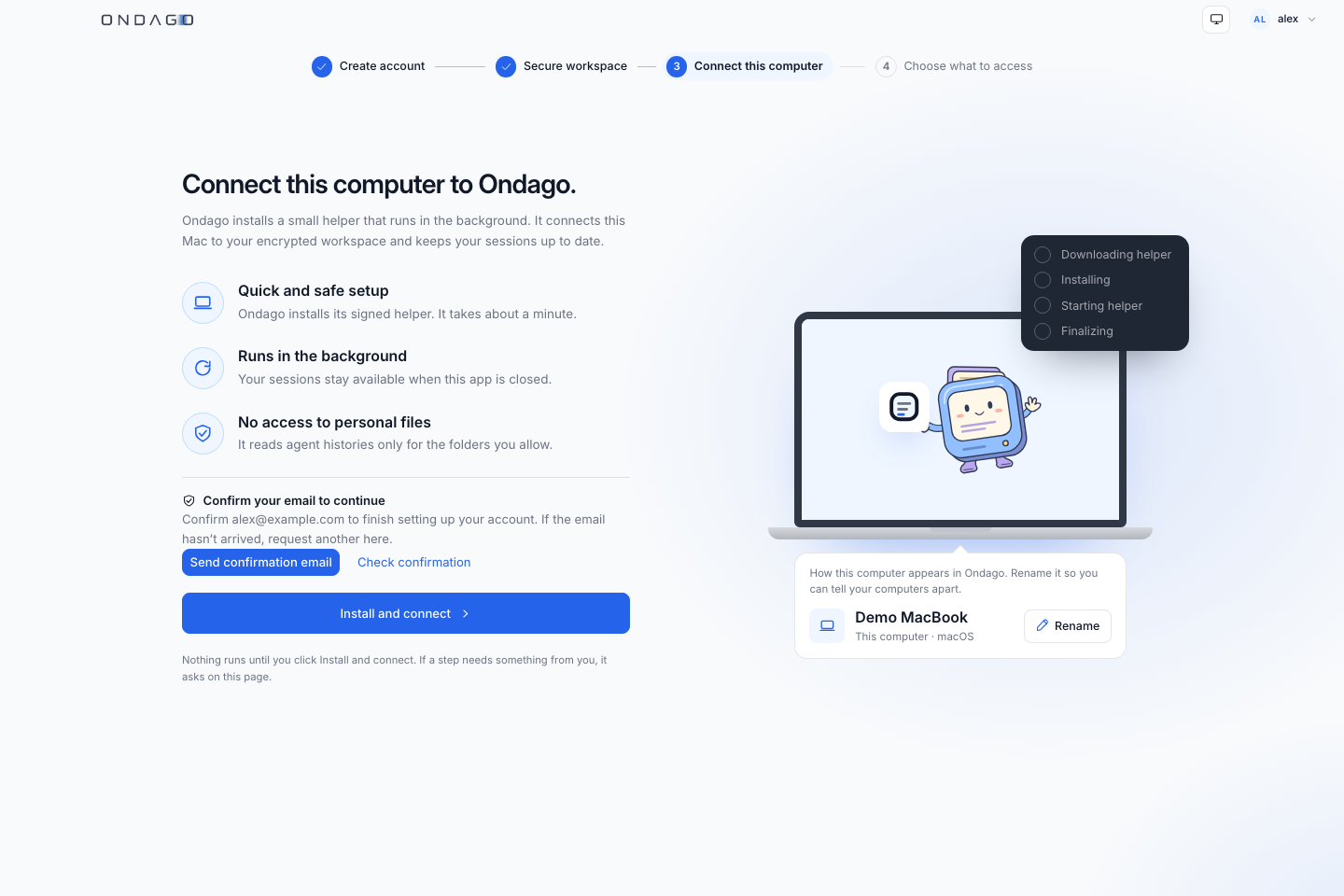
Upcoming Desktop update: onboarding shows four steps across the top of the window: Create account, Secure workspace, Connect this computer and Choose what to access. Secure workspace is where you save your recovery passphrase. Connect this computer starts when you choose Install and connect, shows its progress (downloading the helper, installing, starting the service, finalizing), asks you to confirm your email when needed, and ends on a summary. The last step, Choose what to access, asks which agent histories Ondago may read and, optionally, only in which folders, starting from any choice you already saved, and Finish setup saves your choice. If you allowed Claude Code, Codex, Copilot CLI or OpenCode, it then adds Ondago’s hooks to those agents only and lists each agent and the file it changed; choose Continue to open Overview. Otherwise Finish setup opens Overview directly. Setup cannot be skipped. There is no welcome-page click, session selection, or cloud-provider step before Overview. The courier then introduces Ondago as one place for your agentic work across projects. The capability tour covers organizing work, continuity across computer, cloud and phone, switching agents, agent collaboration and teammate sharing. You can explore without starting a session, or choose Skip tour. Your progress stays reachable on Overview, including a guide to provider settings. Transfers you already started keep their recovery controls.
Desktop app: Connect this computer#
Connect this computer#
- Sign in or create your Ondago account. A browser-based sign-in returns you to Desktop.
- Register this computer using the authenticator or email-code option shown for your account. Save and confirm your workspace recovery passphrase when prompted.
- Let the setup guide check the CLI and local service. Use its retry action if a check fails.
- In the upcoming update, setup waits for Install and connect before running, and ends on a summary. Then choose which agent histories Ondago may read, and choose Finish setup to open Overview, where the capability tour starts. Finish setup adds Ondago’s hooks only to the agents you allowed and names each file it changed. If you already chose, the summary's Continue to Overview takes you there directly. Local agent accounts and workspace credentials for cloud use remain separate.
Upcoming Desktop update: Ondago adds its agent hooks only to the agents you allow in Settings → Local history, whether from setup, Install agent hooks under Permission prompts in Settings → Insights, or a transfer’s review. Each time you save your Local history choice, Ondago removes its hooks from the agents that choice does not allow, including hooks added with ondago init-hooks, and names each agent and file it changed. To add them back, allow the agent in Local history, then install them from Permission prompts.
Desktop setup checks the computer’s dependencies itself. If you return through a browser after Desktop sign-up, continue back in Desktop to finish connecting the computer.
If you change the configured Ondago server, restart Desktop and sign in to that server. Saved sign-ins belong to their original server. In the next Desktop update: a sign-in saved for a different server is detected before computer setup, with an explanation and a new sign-in prompt. Local sessions and encryption keys are preserved.
Desktop app: Upcoming: explore your connected workspace#
Upcoming: explore your connected workspace#
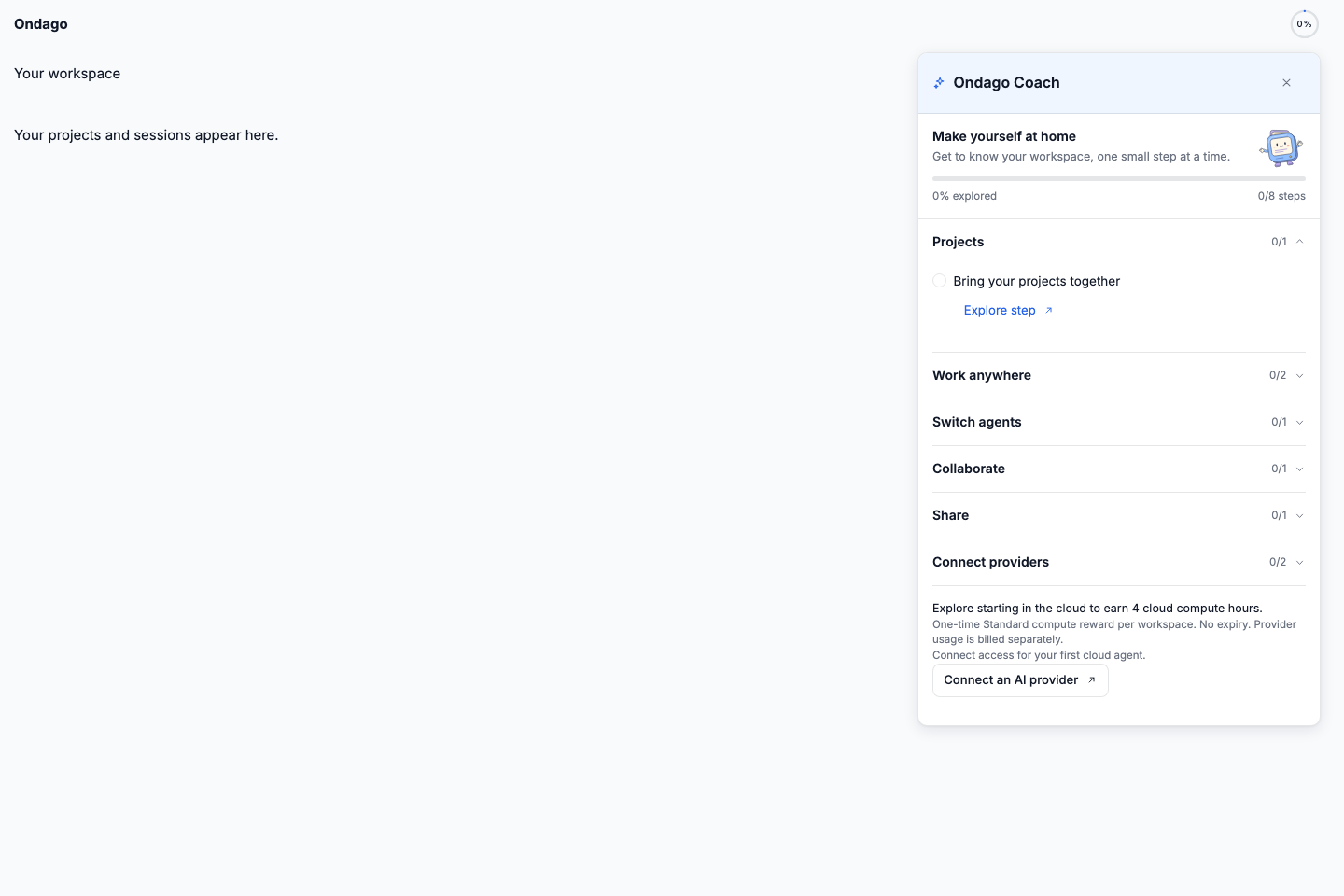
Ondago brings your agentic work together across projects. The upcoming Ondago Coach opens from the percentage ring in the header. Its side panel shows saved progress and grouped steps for projects, cloud tasks, moving sessions, agent switching, collaboration, sharing and provider access. In the upcoming desktop update, the header percentage ring is smaller. Expand a section and choose Start walkthrough (or Replay walkthrough) to open the relevant screen and follow highlighted controls. Each of the eight steps guides you through the real project, launcher, continuation, collaboration, sharing or provider screens. Use Go to highlighted controls for keyboard access, and Exit walkthrough or Escape to leave. Missing controls explain what is needed. Finish with Mark explored to save progress; failed saves offer Retry. The walkthrough does not submit forms, run agents or send invitations for you. Web and phone retain the illustrative Explore step guides.
In this upcoming update, completing the start-in-cloud introduction grants four bonus hours of Standard cloud compute once per workspace, with no expiry. The reward is additional to the normal monthly allowance and is shared by the workspace. Provider model usage is billed separately. Larger runners are excluded, and existing per-run limits, concurrency limits, permissions and workspace freezes still apply. The coach shows available, reserved and consumed reward time. Replaying the tour or reconnecting a provider does not grant more hours.
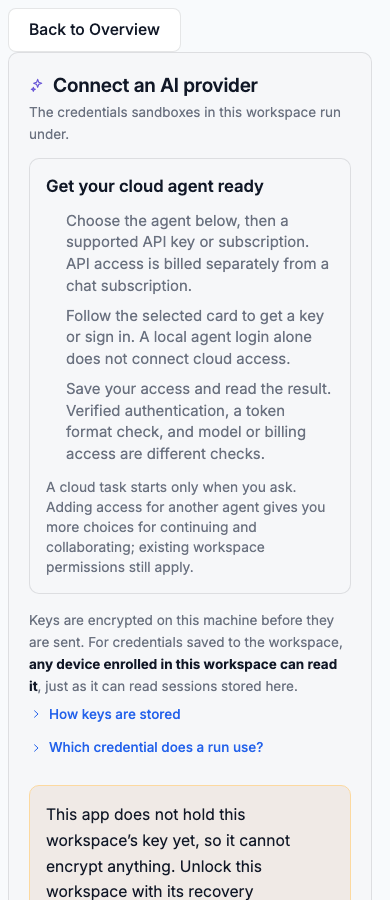
Connect an AI provider opens Settings → Agents. Choose Connect on an agent, pick a supported API key or plan in the sheet, follow its card to obtain access, then save and read the validation result. Local login, encrypted storage, verified authentication and model or billing access are separate facts. A format-only token check does not confirm that a task will run. Existing collaboration and sharing permissions remain authoritative.
Desktop app: Planned update#
Desktop app: Planned update#
Desktop app: Planned update#
Desktop app: Upcoming: onboarding email updates#
Upcoming: onboarding email updates#
In the next update, Desktop will require confirmed email status before finishing essential setup and showing its summary. Old provider and session-selection steps will no longer interrupt setup. If checking confirmation fails, use Check confirmation again after your connection recovers. Desktop setup has no skip control; it ends when you finish it.
The welcome email will be sent after you finish onboarding on Desktop, or finish or skip it on the web, instead of when the account is created. Email confirmation still arrives during password signup. Reopening or skipping the guide again will not send another welcome.
Desktop app: Planned update#
Upcoming Desktop update: while Overview is open, its yellow navigation dot follows the Needs you count for the selected place, project, and time range. Zero means no dot. On other screens, the dot checks pending input across the workspace.
Desktop app: Planned update#
Upcoming Desktop update: the illustrated startup screen stays visible for at least three seconds whenever it appears. If preparation takes longer, it remains until the next screen is ready.
Desktop app: Planned update#
Upcoming Desktop fixes: a newly started local session appears once while discovery catches up, and its conversation reuses the existing hosted connection. During cloud handoff, Prepare includes cloud checks and a fresh upload-size measurement. Stop appears only when an active local agent is being paused or stopped. The elapsed time covers the whole transfer. Saved sessions proceed without waiting for a stop signal.
Desktop app: Upcoming: clearer history choices#
Upcoming: clearer history choices#
Agent choices in setup and Settings → Privacy show the agent name and icon. Select Show exact folders to open a scrollable popover with each agent’s storage locations. Closing it does not change your choices.
The upcoming Desktop and web update also makes the Share a session and Collaborate notices more compact, with a separate Available today explanation and a Got it button. Their dedicated sharing and collaboration controls remain Coming soon.
Desktop app: Find and open a session#
Find and open a session#
Upcoming Desktop fixes: Codex sessions with a recorded active task show Working in the session list and conversation even when live control is unavailable. Matching completion or interruption clears that state. Resuming shows one progress message in the composer. Finished turns will no longer briefly return to Needs you when an older connection refreshes.
Upcoming coordinated app and CLI update: conversation bubbles will label your messages You and agent replies with the model recorded for that reply. Streamed Claude replies will retain their recorded model across history refreshes, and internal API request snapshots will not appear as extra replies. Codex replies will also retain the model recorded for their turn on desktop and phones, including during live history updates. Codex messages will clear their Received by host placeholder once their matching native transcript arrives, including after reopening a session. Intentionally repeated messages stay separate. If delivery remains unconfirmed, check the conversation before sending again.
Upcoming Desktop update: sessions from an agent installed while Ondago is open will be discovered automatically once its history folder appears, provided that agent is enabled in Settings → Privacy. Antigravity sessions in included projects also remain discoverable when you exclude other projects. Antigravity sessions and the sidebar use its colored logo. The sidebar also adds Antigravity account usage from the installed agy CLI. Its percentage shows the most-used reported quota pool; hover or focus it to see each model group’s limits and reset times. An unavailable quota is shown as a dash, not zero. Select the meter for Antigravity’s usage help. In the upcoming Desktop and CLI update, Antigravity tool calls show their native action and file or command details when available. Desktop also shows pending native permission requests under Needs you, even before a tool result reaches the transcript. In the upcoming coordinated Desktop and CLI update, connected Antigravity CLI sessions offer Allow once and Deny in Ondago while the original terminal stays open. If the notice asks you to connect, ask Antigravity to run ondago antigravity-connect once in that conversation, then select Check again. If a permission is already blocking that command, answer that first request in Antigravity. The helper does not change permission settings. Requests without a supported live connection, including editor sessions, still need an answer in their original terminal or editor. The notice clears when the request is resolved. To continue an Antigravity conversation in Ondago, first exit that conversation in its original terminal or editor. While it remains open, Ondago explains the ownership block and offers Check again; your draft stays in place. In the upcoming Desktop and CLI update, a conversation open in the Antigravity CLI terminal also offers Take over: Ondago ends that terminal session (its current turn stops) and continues the same conversation here; reopen it in a terminal later with agy --conversation <id>. A conversation open in the Antigravity editor still has to be closed there first.
Upcoming coordinated app and CLI fix: connected Antigravity chat will list models from your installed CLI and apply your choice to the next message. Antigravity includes effort in its model variants, so choose the variant with the effort you want. Follow-up messages will wait in Ondago while a turn runs; you can edit, reorder, or remove them before they start. A stopped or failed turn leaves waiting messages unsent for review. The queue lasts while its Ondago host is running. The background continuation uses Antigravity’s headless mode, which cannot ask interactive permission questions; direct approvals require a connected interactive CLI session. Internal checkpoint and system events will no longer appear as assistant replies, and the local session list will follow the connected agent’s ready or working state.
- Open Sessions.
- Choose a computer or cloud location, then use search and filters to narrow the list.
- Select a row to inspect the session’s agent, location, status, and available actions.
- Open the session to read its conversation. Send a message to continue when the connection is ready.
Use the composer’s Session button to open model and effort preferences, usage, running work, repository details, and MCP servers. On mobile, Enter inserts a new line; tap the send button when your message is ready. On desktop, Enter sends and Shift+Enter inserts a new line. Model and effort appear side by side, with current settings shown below the choices for your next message. Expand Token details to inspect cumulative usage and cache totals. Unavailable controls explain why they cannot be changed. Common prompts add text to your draft for review; they do not send it.
In the next app update: when a provider refuses a model, choose another model directly in the recovery card and retry the original request with its attachments. Model selection does not guarantee provider access. If delivery is unconfirmed, check the conversation before sending again. A confirmed message appears once, and sending is shown separately from starting the agent.
Desktop app: Planned update#
Upcoming Desktop and web update: open the session’s three-dot menu and choose Preview to preview its development server. Preview requires a connected session with control access.
Desktop app: Planned update#
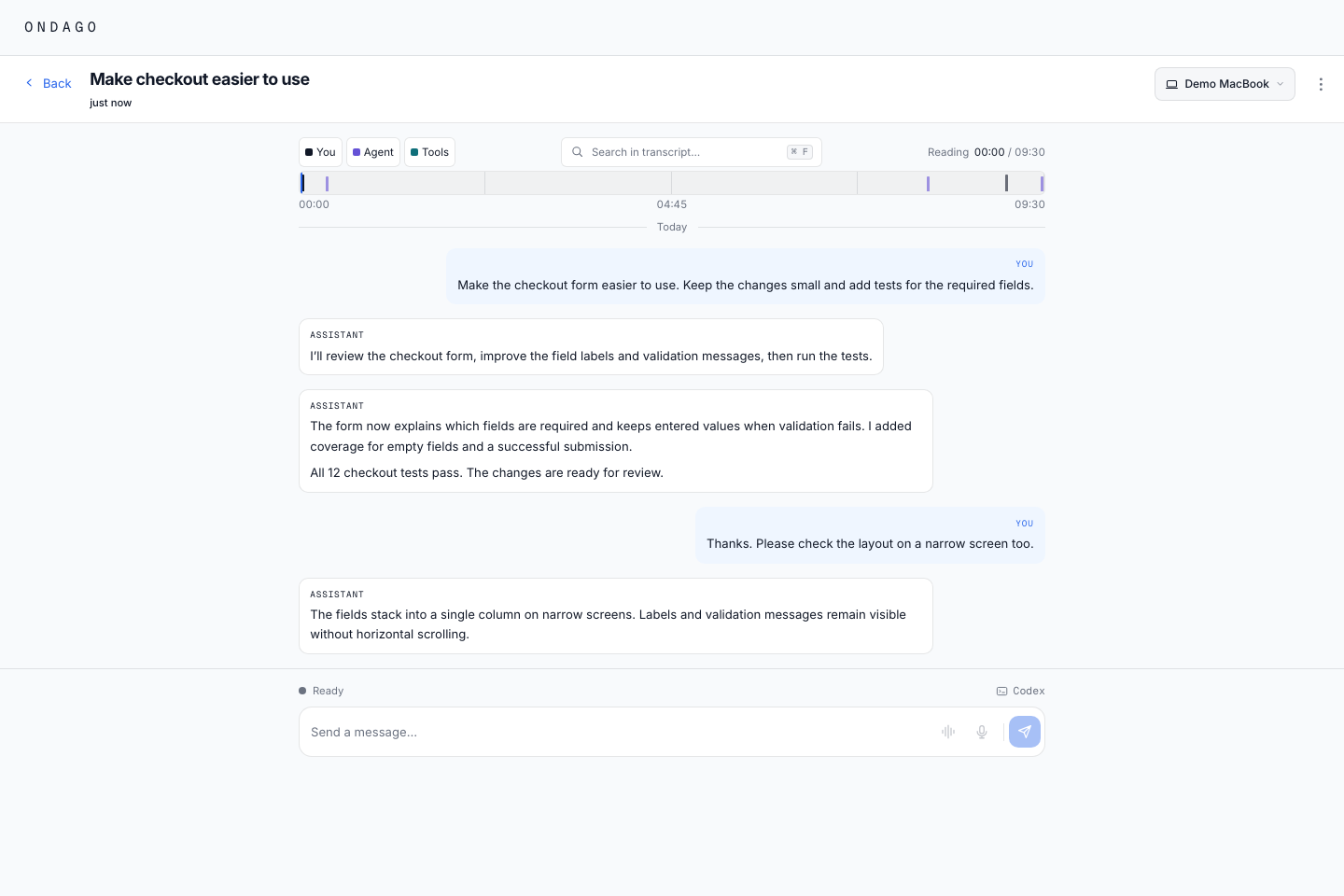
Upcoming Desktop and web update: when shown, the compact session timeline is shown by default at the start of the transcript and scrolls with the messages. Choose Hide timeline in the session’s three-dot menu to hide it, or Show timeline to bring it back. A slim activity strip and elapsed-time scale help you find a time range; role filters, search and reading position share one controls row on desktop. A selected range shows its result count and a Show all action. When context compaction is recorded, diamonds and dashed lines mark those points on the timeline. Choose Next compaction to jump to the next one after your reading position, wrapping after the last. A session with one uses Go to compaction. The destination explains that earlier context was summarized and offers another Next compaction action. Filters stay in place when they include the destination. If a search or time range hides it, the status explains what was cleared and offers Restore to bring the previous filters back. Use Jump to top to return to the timeline.
Desktop app: Planned update#
In the next Desktop update: session activity times for timestamped transcripts follow the latest recorded conversation event. Copying or touching a transcript file, or updating its metadata, no longer makes an old conversation appear recently active. Transcripts without recorded times use the available metadata or file time.
Desktop app: Work with your sessions#
Work with your sessions#
- Start: choose Start a new session, describe the task, then choose Start session (or press Enter; Shift+Enter adds a new line). Run on, Project, and Agent stay visible below the prompt. Recent selections are remembered on this device for your account and workspace. Check Run on: local work uses the selected computer and folder; Secure Cloud uses your workspace’s cloud allowance. Open Advanced settings for Mode, Model, and Thinking effort. A task is required before starting. Upcoming update: the launcher opens on the model you last chose for each agent, remembered for your account so Desktop, the Web app and your phone agree, and the Agent chip shows it after the agent’s name, for example Claude Code · Opus. Choosing Agent default passes no model, and the cloud agent or another computer then uses its own default. A cloud session needs a task before it can start, so a remembered model is applied once you enter one. Effort, mode and Agent Discussion participants are not remembered, and a model identifier that includes an account or path (some cloud-provider names) is remembered on this device only. Upcoming update: to start every session the same way, set your agent, provider, model, effort, mode and runner once in Settings → Agents. Upcoming update: startup on another computer will show your submitted message directly, alongside the current step and elapsed time.
- Find again: pin an important session or rename it from the actions offered in its details.
- Continue remotely: use the phone link or QR code. Keep this computer online while it hosts the agent.
- Leave the computer: choose Continue in cloud, review the transfer, and wait for confirmation.
- Change agents: choose Continue with another agent. Upcoming update: choose the destination agent and continue with your conversation using its existing settings. Source hooks, permissions and other agent configuration are not imported or presented for review. Cancel is available immediately while checking compatibility; your original conversation stays available.
Upcoming update: Send on a saved computer session prepares its connection automatically. Startup keeps a next-message composer available, and drafts and attachments survive reopening on the same device. If saving fails, Ondago offers Retry. When cloud is unavailable, a fresh launcher suggests a computer that is ready, while an explicit or remembered selection stays yours.
Available actions depend on the session’s source, agent, connection, and workspace access. A disabled action should explain what is missing.
Upcoming update: questions from background subagents will appear directly in the main conversation, labeled with the subagent’s name. Choose or type your answers in that card without switching conversations. Sending requires a connected session with answer controls; a failed answer keeps the form available.
Upcoming update: for a session started from Ondago, while that session is running, Session details and the header’s Review changed files count only the files that session changed. Files that were already changed in the folder when the session began, and that it has not changed since, are listed under Already changed before this session and are not counted.
Upcoming update: when a workspace has no AI provider yet, the new-session launcher says so in a banner with a Connect an AI provider button, and Start session names what it is waiting for.
Upcoming update: the session header’s location picker lists Secure Cloud first and opens existing transfer reviews. The main agent icon opens Continue with a different agent. The session menu entry that copies instructions, skills and compatible settings to another agent, without the conversation, is named Carry settings to another agent.
Upcoming update: a Claude Code session started from Ondago works in the folder you chose, not in a hidden Git worktree. When a session does work in a linked worktree (because you asked for one, or your organization requires it), the session header and Session details show Working in worktree with its name, and Bring changes into, followed by your folder’s name, lists the changes before copying them in. Your own changes are never overwritten: where you changed a file too, your version stays and the worktree’s is saved beside it with the worktree’s name added, and every file the bring replaces is saved first in a backup. The worktree itself is not changed. If bringing changes in is turned off for your workspace, the worktree is still named but no button is offered.
Desktop app: Planned update#
In the next desktop app update: select your name at the bottom of the sidebar, then Cleanup.
Desktop app: Planned update#
Upcoming update: cleanup checks will run concurrently with a limit and show progress for the current stage. You can use other pages and return while scanning continues. A percentage and completed/total count appear when the amount of work is known; discovery and cloud checks with unknown totals show an indeterminate bar. Percentages describe the named stage, not time remaining.
Desktop app: Planned update#
Local results appear when ready, even if the cloud check is still running. Wait for scanning to finish, review any warnings, then select eligible items and confirm the action. Failed rescans keep previous results visible but unavailable for deletion until a successful rescan. Upcoming reliability fix: Cleanup refreshes hosted-session safety checks and retries one failed read. A failed check pauses local session and worktree deletion, with a visible explanation and Retry scan. While Cleanup is open and nothing is selected or being confirmed, it automatically rescans once after five seconds. Persistent failures remain blocked for manual retry. These checks do not start or restart the background service, and saved cloud copies are checked separately.
Desktop app: Read recent conversations after leaving this computer#
Read recent conversations after leaving this computer#
While signed in and connected, Desktop automatically syncs encrypted reading copies of discovered conversations with activity in the last 72 hours. In the upcoming history-access update, it discovers conversations only for the agents you allowed in the local history prompt, so an agent you did not allow is neither read nor synced. After syncing, you can read them from another authorized browser even when this computer or Desktop is offline.
If Desktop shows Conversation sync needs attention, select a conversation title to open it, use Retry now to try again, or dismiss the notice while automatic retries continue. Conversations over the reading-copy size limit keep their history on this computer and are retried only after they change.
In the next API and Desktop update: if a conversation reappears locally after its synced copy was deleted, automatic sync pauses for that conversation. Choose Review sync, then Restore synced copy to enable an encrypted upload again, or Keep local only to leave it on this computer and stop the notice. Retry now does not restore a deleted copy. Your local conversation remains available.
In the next Desktop update: if the local index cannot open, conversation uploads pause together while Ondago retries the index. Use Sync details to inspect the local failure and Retry local index after resolving it. This preserves your conversations and custom names. Local image previews remain available without the index when the source session is allowed by your history settings.
These are temporary reading copies, not saved bundles or running agents. Desktop must sync before going offline. See access requirements, retention, and what remains read-only.
In the next app update: selecting a computer session whose live connection has disappeared opens its synced reading copy when available. If no readable copy is available, the session pane explains that and offers a refresh or retry, instead of asking you to select the session again. A computer confirmed offline will show Offline. Saved history keeps the conversation visible while live approval and session controls are hidden until the connection returns.
Desktop app: Updates and setup checks#
Updates and setup checks#
Upcoming Desktop update: About combines the two Settings pages. Desktop checks for updates automatically at startup when due and every ten minutes, with no opt-out. Earlier saved opt-outs no longer disable checks. You can still select Check now; installation waits until you choose Restart and update. Update the CLI and service, inspect installed versions and signing details, or restart the service from this one page. The installed CLI version refreshes after an update finishes. Earlier Desktop releases keep separate Updates and About pages.
The version control in Desktop’s title bar shows a dot when an update is available. Select it to open the update details, or open About in Settings. Follow the download or restart action offered for your installation.
Before an update restarts Desktop, a confirmation lists any open CLI tasks, local session connections, and guided setup work that shutdown will close. A listed connection may be idle; it does not necessarily mean an agent is actively working. Choose Keep working to cancel the restart and leave the update ready for later.
Upcoming Desktop update: after you select the restart-and-update action, the button shows Updating… and stays disabled until Desktop closes. Cancelling the restart or a failed request makes the action available again.
Upcoming Desktop update: CLI and service upgrades will run only when you choose Settings → About → Update CLI and service, or once when you open a newly installed Desktop release. Routine startup and automatic Desktop update checks will not replace them. If a service restart must wait for active work, request the update again after that work finishes. Check now will check Desktop only.
You can also update the CLI separately with ondago update. If the running service needs to adopt that version, use Settings → About → Restart. The account menu also provides Run setup guide and Devices.
Desktop app: Upcoming: check the upload before handoff#
Upcoming: check the upload before handoff#
The next Desktop update measures the compressed, encrypted transfer before showing the project as Ready. Review shows the total upload separately from the largest part, which is checked against the per-part limit. Measuring prepares the encrypted upload locally, so large conversations and project folders can take time. GitHub-backed review skips the full-project inventory and measures the local changes that travel instead. An upload above the server’s limit, or a size check that could not finish, blocks Continue before the local agent is paused. Changing transfer options checks the size again. Skipping GitHub or choosing folder upload keeps completed agent access and configuration checks in place while the project contents and upload size are refreshed. Continue stays unavailable until the new measurement finishes.
For a GitHub project, review checks GitHub access to that repository. If access is missing, Connect GitHub opens a connection dialog and guides you through installing the Ondago GitHub App when needed. Choose Skip GitHub connection to upload the project folder instead. A confirmed connection shows its status and a small wrench to manage the connection. When available, Upload folder instead appears beneath the wrench. Once workspace access covers the repository and a published base commit is available, Ondago uses GitHub automatically. Folder-upload alternatives are hidden while the measured transfer exceeds the server limit. A folder upload already measured as too large stays unavailable when GitHub reduces the transfer. Otherwise, you can choose Upload folder instead even when GitHub is connected, and Ondago checks its size again. There is no transfer-mode checkbox. The cloud fetches the repository while your conversation, local changes and eligible untracked files still upload. Sanitized project settings travel with those changes without forcing a full project snapshot. Conversation history, images and agent configuration still count toward the measured upload, so the size check must pass.
Size errors appear inside the Conversation & project row, with a red background and a Needs attention label. The project row shows Using GitHub or Using folder upload after inspection. When the project is ready, expand Conversation & project to see the connection controls and file details. If access or project checks need attention, the connection controls remain visible below the row. Completed checks turn green and move to the top, with reduced-motion preferences respected. The Ondago character sits above the computer-to-cloud route, with larger route text, above the introduction on the left. Cloud defaults remain a separate agent configuration choice and are not offered to reduce upload size. The hosted direct-upload limit in this update is 128 MB (128,000,000 bytes); review always uses the limit supported by the connected server.
When you move a project folder to the cloud, files up to 64 MiB each travel. A file over 64 MiB is named on the transfer sheet and left out, with the fix: link the repository, or exclude the file. The folder total is checked before anything uploads. It is 250 MiB (about 262 MB), or 100 MiB if a workspace admin turned large transfers off. A folder over the limit is refused with its largest files listed.
If a transfer fails, Continue on this computer checks and recovers the previous attempt, resumes the same local session, and finishes onboarding. If recovery cannot be confirmed, Ondago keeps the error visible instead of starting a second agent.
Desktop app: Upcoming: quicker handoff and terminal resume#
Upcoming: quicker handoff and terminal resume#
The next CLI and Desktop update removes the extra pause wait for a selected session. Saved sessions and conversations open in the Codex app proceed directly to packaging, without a stop signal or a wait for one. Once transfer checks pass, a running terminal session is stopped, its snapshot is sealed, and it automatically resumes in its original terminal before uploading when that terminal supports it. Resume opens the conversation without sending a message. If the original terminal is busy or cannot be addressed, the transfer output gives a manual resume command.
Your cloud session continues from the snapshot. Changes you make locally afterward are separate, and existing return checks protect an open or changed local session. Large projects can still take time to package.
Web & mobile app: Planned update#
Upcoming onboarding update: finish account registration, workspace access, and recovery setup, then go directly to Overview. You will not need to install a computer or connect a cloud provider to browse the app. The capability tour introduces your projects, agents and sessions in one place, then shows how to continue across computers, agents and the cloud. You can view every chapter without launching a session or connecting a provider. Open the Ondago Coach percentage ring in the header to return to unfinished steps, or use Show me around under your account (in You on a phone). On phones the coach opens on Home. Provider guidance opens the existing Settings controls.
Web & mobile app: Start a new session#
Start a new session#
Open New session, describe your task, then choose Start session. The task field is focused when the dialog opens. Run on, Project, and Agent stay below the prompt, with recent selections remembered on this device for your account and workspace. A connected computer works in its selected folder and must stay online; Secure Cloud uses your workspace’s cloud allowance. A computer that is offline shows Offline since the time it last checked in, and starting on it is refused before anything is sent, with your message kept. Advanced settings starts collapsed and contains Mode, Model, and Thinking effort. Upcoming update: the model you last chose for each agent is remembered for your account and shown on the Agent chip, so the Web app, Desktop and your phone open on the same model. Upcoming update: set what a new session starts with once, per workspace, in Settings → Agents. Enter starts the session once a task and valid settings are present, and Shift+Enter adds a new line, the same keys a running session uses. On a phone, Enter adds a new line; tap Start session to start. Switch to Agent Discussion to ask a question and choose two to four participants.
Upcoming update: a Claude Code session started on a connected computer works in the folder you chose, not in a hidden Git worktree. If a session does work in a worktree, Desktop names it and offers to bring its changes into your folder.
Upcoming update: while a session starts on another computer, the progress panel will show your submitted message without an extra click. Long messages remain scrollable, and the current step and elapsed time stay visible.
Web & mobile app: Continue the conversation#
Continue the conversation#
Upcoming cloud continuation fix: preparing, starting and reconnecting stay in the conversation. Ondago follows the same launch after a connection interruption and opens it when ready. Reopening the same saved session reconnects to its pending launch automatically, without sending your draft again or creating another run. A slow startup offers waiting or stopping; confirmed failures explain what happened.
Upcoming loading-state fix: while a cloud agent prepares, the conversation keeps its preparation indicator instead of briefly claiming there are no messages. Initial history loading shows message placeholders. An ended or failed connection without history no longer keeps a loading message indefinitely. Your composer and draft stay in place.
Upcoming Desktop and Web update: session headers place the location picker, agent icons and Add beside a flexible title at the top right on desktop. The title fills the remaining space up to the controls and keeps a readable minimum width. Narrow panes and phones keep the controls on a separate row. For cloud sessions, return to a computer through the Secure Cloud menu. With one or several agents, + Add stays directly beside the agent icons in the same rounded control group and opens that menu. The project name appears beside the status below the title. Local sessions show Ready when Ondago has a current ready observation or an idle report from an agent that is still running. Saved transcripts alone do not receive a Ready badge. Choose the main agent icon to open Continue with a different agent directly where supported, then review compatibility and the conversation copy. The compact review carries your conversation using the destination agent’s existing settings. Source hooks, permissions, skills and other configuration are not imported or shown as review blockers. Cancel is available immediately during installed-agent and compatibility checks. Open Advanced details for a short summary of conversation content that carries over, adapted tool activity and important omissions. The destination agent keeps its existing settings. Connection failures offer Try again; an unconfirmed switch offers Check again to recover its existing copy. Use the composer’s Session control for model, effort, mode and permissions. Upcoming coordinated CLI and app fix: supported mode, approval and permission settings remain editable while the agent works. A change stays pending until the agent confirms it. If the agent explicitly requires the current turn to finish, Ondago keeps working and applies the requested change once idle. Keep the session connected while it waits. Other refusals keep the confirmed value and explain why. Model and effort choices apply to your next message. Effort choices use the current model without requiring you to select that model again. Available choices depend on the connected agent. Upcoming question history fix: agent questions show their offered choices in the conversation, including with Tools hidden. A reply sent later appears at its original place as a readable answer card with the question for context. Recorded selected choices stay visible when reviewing the conversation. Open the location button to see Secure Cloud first, the current location and existing transfer options. This replaces the standalone Continue in cloud header button. From a computer, Secure Cloud opens the cloud-continuation review. From a cloud session in the Web app, choose an available computer to open its return and folder review. Direct computer-to-computer transfer is not yet available; other computers explain how to continue through Secure Cloud. Compact Conversation, Changes and Details tabs sit below the header, with transcript search on the right on desktop. Switching views keeps your message draft and conversation position. Changes reuses the file and diff viewer; Use the Details tab for a compact summary of the agent, computer, session ID, folder and recorded token usage. The live summary includes a phone QR code and Copy link action. Click the QR code to open the session in your browser. Scan and sign in with the same account. First recorded comes from the available transcript; Connection started belongs to the separate connection diagnostics. Model usage and connection details expand when needed. The session menu omits the duplicate Session details action and the separate Carry settings to another agent action. Add offers Share with people to open session invitations directly. The separate Collaborate header button is removed. Sharing requires the workspace setting and a server with session-sharing support. Upcoming update: the sharing dialog supports local sessions on your signed-in computer, email invitations and a Create invite link action. Enter the recipient’s email, choose their access, then send the email or create a link to copy. Links work only for that email address and expire after 72 hours. This requires an updated app and server; sharing remains off unless enabled for your workspace. Add specialized agent is available where Agent Collaboration is enabled, letting you choose a role to review or advise on the session. The panel continues as an Agent Discussion where supported.
Read the latest messages before sending. Type into the composer and send when the session is ready. Some agents support queued messages, steering, image attachments, and approval prompts; the controls shown depend on the active connection.
Opening a session does not itself take control. If another device controls it or delivery is uncertain, follow the status shown in the composer. Check the conversation before retrying a message whose delivery is unknown. Read how to recover an unconfirmed message.
Upcoming update: a dev server or watcher the agent left running appears as a quiet pill above the composer, with a terminal icon: Server running · npm run dev for a command that looks like a dev server, otherwise Command running or 2 background commands running. It is not the agent working. The thread says Working… only while a turn or a subagent is running, so an idle agent with a server beside it reads as idle, with the pill. Open the pill to see each command.
Stop appears beside the pill only where the host offers it; for Claude that means sessions Ondago runs in the background on macOS and Linux. It asks the command to end and never forces it: a command that ignores the request keeps running and the app says so, a refusal shows the host’s own reason, and Claude may take a short turn to note that the command ended. Elsewhere the sheet says how to stop it, by asking the agent or from a terminal on the computer. A Claude session still open in its terminal shows the pill but no Stop. A message sent to it is typed into that terminal where Ondago can type into it, and held otherwise (see how, and how to send it now). OpenCode reports no background commands, so it shows no pill. In the next app update: Codex background-command guidance appears inside the running-commands popup. Stop errors remain below the message field, which stays available for typing and sending through the connection’s queue or steering controls. Stopping a Codex turn leaves background commands running; use each command’s separate Stop control to end it. Copilot CLI shows the pill, with Stop for a single task, for the tasks its own session lists. Claude on Windows reports no count, so it shows the pill only for a non-agent task its stream names, and never with Stop. In the Web app and for cloud sessions the header says Idle beside the pill. In Desktop’s local view the session list keeps Working, and the conversation header and the details show the pill’s words, such as Server running.
Upcoming update: questions from background subagents will appear directly in the main conversation, labeled with the subagent’s name. Choose or type your answers in that card without switching conversations. Sending requires a connected session with answer controls; a failed answer keeps the form available.
Web & mobile app: Keep writing while a session connects#
Keep writing while a session connects#
Upcoming update: open an existing conversation, write your message and press Send. Ondago prepares the connection and resumes the session on its existing computer when supported. Opening history alone does not start an agent. Moving execution to Secure Cloud remains a separate choice.
During startup, keep writing in Next message. Send queues that message for the confirmed session. Drafts and attachments are saved encrypted on this device and return when you reopen the conversation. If saving fails, keep the window open and use Retry. An unconfirmed delivery is shown honestly and is never sent again automatically.
Web & mobile app: Planned update#
Upcoming fix: once a structured agent connection acknowledges a slash command, its temporary delivery receipt clears even when the command creates no user message. Ongoing work, including compaction, remains visible through the activity indicator. A refused or unconfirmed command keeps its recovery information.
Web & mobile app: Answer approvals and MCP questions#
Answer approvals and MCP questions#
Upcoming CLI and app update: an MCP tool asking for approval, such as Allow the posthog MCP server to run exec?, appears in the conversation with Allow once, Allow for this session when the agent offers it, and Deny. Allow for this session lets similar requests run without asking until the session ends. Nothing is saved to the agent’s settings.
For Claude Code running in a terminal on a connected computer, a permission prompt stays answerable from Ondago even if nobody had the session open when it appeared: open the session on your phone or another computer and answer it there, or answer it in the terminal. The terminal’s own prompt stays usable the whole time, and whichever answer comes first is used. This needs Claude Code 2.1.289 or later and Ondago’s agent hooks. When Ondago cannot answer a prompt, the conversation says the answer is waiting in the terminal and the session shows Needs you.
Questions from an MCP server (a form, a yes or no confirmation, or a sign-in link) appear as question cards. Claude Code shows them in Ondago while you have the session open; otherwise answer them in its terminal. In Codex sessions that Ondago starts, MCP tool approvals and questions, and requests from the session’s subagents, appear in the main conversation. ACP agents such as OpenCode and Cursor show yes or no MCP confirmations as Accept and Decline. Antigravity’s MCP prompts are still answered in Antigravity.
Web & mobile app: Read synced conversations while your computer is offline#
Read synced conversations while your computer is offline#
Desktop automatically publishes encrypted reading copies of discovered conversations whose latest source activity is within 72 hours (in the upcoming history-access update, only for the agents you allowed in the local history prompt). A copy contains the synced conversation history, including older turns, tool results, and available referenced images. It is separate from an explicitly saved session bundle.
- Use an updated, signed-in Desktop app and let it discover and sync the conversation while the source computer is online.
- On your phone or another browser, sign in to the same account and complete device registration and personal-vault key access.
- Find the session under its computer and open it. When the source is offline, check Last synced to see how recent the reading copy is.
- Use Load earlier messages and, when shown, Load later messages to move through the conversation. Images and attachments load when needed.
You do not need to have opened the conversation in that browser before. You do need an internet connection to retrieve its synced copy; this is access while the source computer is offline, not a guarantee that the browser works without internet. Installing the Web app does not change that requirement.
Upcoming mobile reader update: connection status and Last synced appear in a compact row with Refresh. Refresh checks session availability; it does not wake an offline computer or change the last-sync time by itself. Load earlier messages is centered above the conversation and preserves your reading position. Failed page loads offer a retry beside that control; Start of conversation marks the beginning of the available history.
Copies expire 72 hours after the conversation’s latest source activity. Opening, renaming, refreshing, or retrying the copy does not extend that period. Use an explicitly saved bundle when you need to retain a snapshot beyond this temporary window. Reading copies are available only to the source computer’s account owner; shared-workspace membership alone does not grant access.
A reading copy cannot send messages, run the agent, or transfer an offline computer’s session to the cloud. Those actions still require the appropriate live connection and source availability. Last seen running describes the last reported state, not a currently connected agent. If the conversation has not synced, reopen Desktop on the source computer; Ondago cannot recover an unsynced conversation from an offline machine.
Screen guide: Upcoming: explore your connected workspace#
Upcoming: explore your connected workspace#
Ondago brings your agentic work together across projects. The upcoming Ondago Coach opens from the percentage ring in the header. Its side panel shows saved progress and grouped steps for projects, cloud tasks, moving sessions, agent switching, collaboration, sharing and provider access. In the upcoming desktop update, the header percentage ring is smaller. Expand a section and choose Start walkthrough (or Replay walkthrough) to open the relevant screen and follow highlighted controls. Each of the eight steps guides you through the real project, launcher, continuation, collaboration, sharing or provider screens. Use Go to highlighted controls for keyboard access, and Exit walkthrough or Escape to leave. Missing controls explain what is needed. Finish with Mark explored to save progress; failed saves offer Retry. The walkthrough does not submit forms, run agents or send invitations for you. Web and phone retain the illustrative Explore step guides.
In this upcoming update, completing the start-in-cloud introduction grants four bonus hours of Standard cloud compute once per workspace, with no expiry. The reward is additional to the normal monthly allowance and is shared by the workspace. Provider model usage is billed separately. Larger runners are excluded, and existing per-run limits, concurrency limits, permissions and workspace freezes still apply. The coach shows available, reserved and consumed reward time. Replaying the tour or reconnecting a provider does not grant more hours.
Connect an AI provider opens Settings → Agents. Choose Connect on an agent, pick a supported API key or plan in the sheet, follow its card to obtain access, then save and read the validation result. Local login, encrypted storage, verified authentication and model or billing access are separate facts. A format-only token check does not confirm that a task will run. Existing collaboration and sharing permissions remain authoritative.
Screen guide: Planned update#
Screen guide: Planned update#
Screen guide: Planned update#
Upcoming Home layout: session status and Location use adjacent dropdowns matching the sort control. Choose the time range directly from the compact dropdown, such as Past 3 days, without an extra label. The extra places-and-projects sidebar is removed. Project navigation stays in the main sidebar. The filters wrap on narrower desktop layouts. Phone Home keeps Continue your work; open All sessions for session filters.
Screen guide: Planned update#
In the upcoming onboarding update, the first time an account opens Home after setup, Ondago Coach introduces the workspace with a progress bar and an expandable checklist. Explore the steps in any order without starting a session. Only explicitly marking a step explored saves progress. Replay it any time with Show me around under your account (in the You tab on phones).
Screen guide: Planned update#
In the upcoming reminder update, choose Snooze for 1 hour to defer a pending question. It moves out of Needs you into Snoozed, with the reminder time shown. You can answer early, undo the snooze, cancel it, or change its duration. Snoozing does not resume the agent. The preference is saved to your account and workspace, and phones show snoozed requests too. An unresolved question returns to Needs you when its deadline passes. While Overview stays open, an in-app reminder follows your question-notification and quiet-hours settings. Closing the app does not schedule an operating-system alert.
Screen guide: Sessions#
Sessions#
In the upcoming sharing update: people who accept a session invitation appear as initials beside the main agent. Open an avatar to manage access, or hover or focus it to see access and whether they are watching. Pending invitations do not appear there. Shared conversations on phones use a compact message composer, with a destination selector only for participants who can message agents. Session location menus use known computer identity to avoid listing the current computer again under a different name.
In the upcoming Desktop update: use Quick Start above the session list to open an empty session in the selected local folder with your default or last-used available agent and provider defaults. Each Quick Start opens a separate new session, including while a previous session remains open. The arrow offers New session… for the full launcher. If a folder or agent needs choosing, the launcher opens instead.
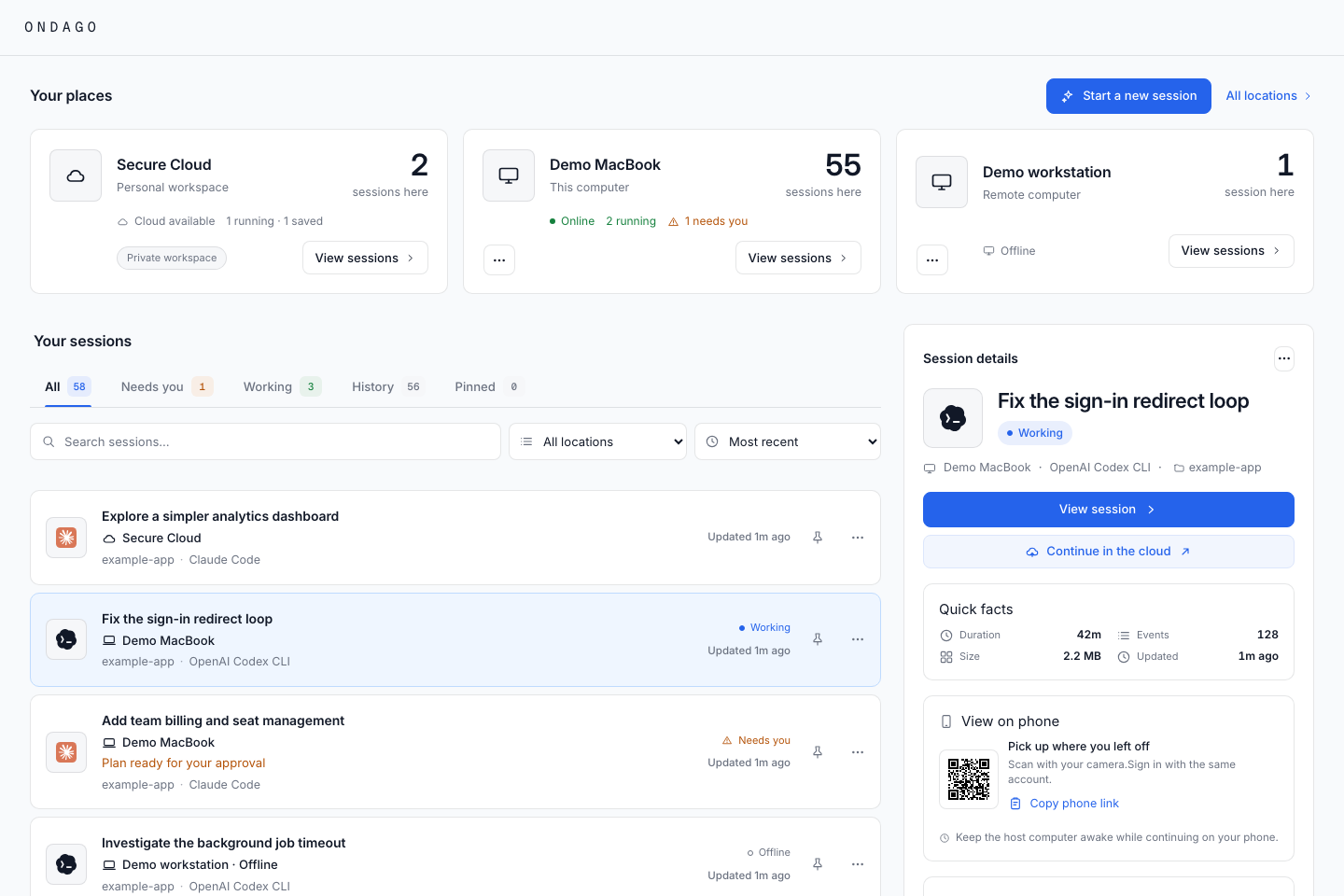
Location cards show where sessions live. The list combines local, connected-computer, cloud, and saved sessions. Search and filters narrow it; selecting a row opens details and its available continuation actions. A wide window shows details beside the list; a phone opens a sheet.
In the next app update: Overview and session lists combine the History and Finished filters into History. It includes saved conversations, idle sessions, and ended or failed runs, and keeps a session visible while its agent works another turn. Individual status badges still describe the session’s current state or outcome.
In the next app update: hover a location or project in its filter menu and select the exclude icon to hide its sessions. The icon stays visible for excluded items and on touch devices. Select it again to restore the item, or use Reset filters to clear all exclusions. These choices stay in this tab or app window.
Screen guide: Session conversation#
Session conversation#
Upcoming Desktop and Web update: session headers place the location picker, agent icons and Add beside a flexible title at the top right on desktop. The title fills the remaining space up to the controls and keeps a readable minimum width. Narrow panes and phones keep the controls on a separate row. For cloud sessions, return to a computer through the Secure Cloud menu. With one or several agents, + Add stays directly beside the agent icons in the same rounded control group and opens that menu. The project name appears beside the status below the title. Local sessions show Ready when Ondago has a current ready observation or an idle report from an agent that is still running. Saved transcripts alone do not receive a Ready badge. Choose the main agent icon to open Continue with a different agent directly where supported, then review compatibility and the conversation copy. The compact review carries your conversation using the destination agent’s existing settings. Source hooks, permissions, skills and other configuration are not imported or shown as review blockers. Cancel is available immediately during installed-agent and compatibility checks. Open Advanced details for a short summary of conversation content that carries over, adapted tool activity and important omissions. The destination agent keeps its existing settings. Connection failures offer Try again; an unconfirmed switch offers Check again to recover its existing copy. Use the composer’s Session control for model, effort, mode and permissions. Upcoming coordinated CLI and app fix: supported mode, approval and permission settings remain editable while the agent works. A change stays pending until the agent confirms it. If the agent explicitly requires the current turn to finish, Ondago keeps working and applies the requested change once idle. Keep the session connected while it waits. Other refusals keep the confirmed value and explain why. Model and effort choices apply to your next message. Effort choices use the current model without requiring you to select that model again. Available choices depend on the connected agent. Upcoming question history fix: agent questions show their offered choices in the conversation, including with Tools hidden. A reply sent later appears at its original place as a readable answer card with the question for context. Recorded selected choices stay visible when reviewing the conversation. Open the location button to see Secure Cloud first, the current location and existing transfer options. This replaces the standalone Continue in cloud header button. From a computer, Secure Cloud opens the cloud-continuation review. From a cloud session in the Web app, choose an available computer to open its return and folder review. Direct computer-to-computer transfer is not yet available; other computers explain how to continue through Secure Cloud. Compact Conversation, Changes and Details tabs sit below the header, with transcript search on the right on desktop. Switching views keeps your message draft and conversation position. Changes reuses the file and diff viewer; Use the Details tab for a compact summary of the agent, computer, session ID, folder and recorded token usage. The live summary includes a phone QR code and Copy link action. Click the QR code to open the session in your browser. Scan and sign in with the same account. First recorded comes from the available transcript; Connection started belongs to the separate connection diagnostics. Model usage and connection details expand when needed. The session menu omits the duplicate Session details action and the separate Carry settings to another agent action. Add offers Share with people to open session invitations directly. The separate Collaborate header button is removed. Sharing requires the workspace setting and a server with session-sharing support. Upcoming update: the sharing dialog supports local sessions on your signed-in computer, email invitations and a Create invite link action. Enter the recipient’s email, choose their access, then send the email or create a link to copy. Links work only for that email address and expire after 72 hours. This requires an updated app and server; sharing remains off unless enabled for your workspace. Add specialized agent is available where Agent Collaboration is enabled, letting you choose a role to review or advise on the session. The panel continues as an Agent Discussion where supported.
This is where you read and continue work. The conversation shows user and agent messages with tool activity where available, including recorded agent questions and the answers chosen. Search helps find earlier text; filters narrow the transcript. In the next app update, the Session panel shows the reported active model and effort inside unavailable dropdowns, with smaller text on desktop. An unreported value is labeled Not reported. The composer shows connection and delivery status and the actions supported by the current agent.
In the next app update: phone session headers show a laptop icon for a session on a computer or a cloud icon for a cloud session, instead of the location name. Larger screens keep the full name. The transcript and composer share a centered reading column on wide screens. A single skill call shows its recorded skill name and opens its input and result with one click. The composer starts as a single compact row and grows for longer messages. On a phone, focusing the input gives the message the full row beside Send. Tools above the input keeps attachments, voice and Session settings reachable; Stop remains visible while the agent works. The larger header actions collapse while composing. Sending or clearing the draft keeps this layout; tap the conversation to restore the regular controls. Attachments appear above the row and feedback below it when needed. In the next app update, live session settings are in the Session panel, opened from the composer’s Session button: model and effort, mode and permissions, how to send while the agent works, and voice. On supported hosts, specialized-agent icons beside the main agent open Agent Collaboration; Add also offers a reviewer. Permissions can change while the agent works; mode waits for the turn to end. Turning on YOLO asks you to confirm first. On a phone the panel opens as a sheet, with voice near the top. It combines image attachments and sketching in the + menu, labeled Add to message. In the updated desktop app, or on an updated remote host, choose Attach files in a connected session to add images, PDFs, documents, spreadsheets, or other files. Older remote hosts offer Attach images. You can also paste or drop files. Attach up to four files per message, including sketches, with a 12 MiB limit per file. Documents appear as file cards in the conversation and are saved in the session’s workspace for the agent to read. Upcoming update: Attach files also works when starting a new session locally, on another computer, or in Secure Cloud. You can start with files alone. Update the destination computer or cloud runtime if Ondago asks before starting. Upcoming composer update: pasting an image, or a text longer than about 100 lines or 10 KB, adds a numbered item and puts its name where your cursor is, such as [Image #1] or [Pasted text #1 +2,140 lines], so you can say which one you mean. Deleting the name removes the item, and removing the item removes its name. Dropped and chosen files are numbered the same way. A pasted text goes to the agent as a file, so a long log never makes a message too long. Each file can be up to 50 MiB and each image up to 12 MiB, with up to four items and 100 MiB per message. Continuing a saved session in Secure Cloud takes attachments too. Attached files are kept in this computer’s cache rather than in the session’s folder, so they never appear as changes in your project or travel with the session; the agent reads them while it works. Because the file is outside the project, GitHub Copilot CLI, OpenCode and a Claude Code session Ondago did not start may ask before reading it; allow the read to continue. Agent Discussions take images only. Sketch remains available on phones when image input is supported. Unavailable actions explain why.
When continuing a saved session in the cloud, follow startup progress in the composer. A percentage marked ≈ is an estimate of startup milestones; wait for the connected session before treating the agent as ready.
Type / to find supported agent commands. For a cloud session, open MCP connections to inspect connection setup results or repair supported connections. Read the MCP connections guide.
In the next app update: model errors keep recovery in one card. Choose an offered model and retry, or refresh the connection when model choices are unavailable. Retrying with the original settings is useful after fixing provider access. Repeated failed requests remain available in expandable attempt rows. Changes views explicitly report loading, no changes, and errors; Repository names the working folder being inspected. Sessions with a known provider failure appear under Needs you. If a remote status becomes unavailable, a previous observation is labeled Last seen rather than counted as current work.
In the next app update: a dev server the agent left running appears as a pill above the composer instead of keeping the thread on Working…, and a message waiting on the host, or a forwarded review, reads in one set of delivery words. Read about background commands and message delivery and recovery.
Screen guide: Optimize context#
Optimize context#
In the next coordinated app and CLI update: the Session sidebar will offer an Optimize context checkbox below Context used. It starts off and remembers your account preference across devices. Changing it affects the selected supported session and future sessions; other running sessions keep their setting.
Optimization reduces repetitive successful test logs and can replace older tool results with retrievable references after five minutes, while protecting the latest ten model/tool cycles. The original transcript and outputs remain available. Use the updated Ondago CLI to resume optimized sessions and move their encrypted replay state between computers.
Initial support covers managed Claude connections, Claude headless resumes, explicitly configured Codex API endpoints, and Copilot custom-provider HTTP connections. Claude background daemons, Codex subscription routes, GitHub-hosted Copilot, OpenCode, Gemini/Antigravity and other unverified routes show a limitation. Existing external processes are not restarted by the checkbox.
The sidebar shows estimated input tokens avoided and a cached-to-uncached API-equivalent dollar range when model pricing is known. These are estimates, not invoice or subscription savings. Cache changes can reduce or reverse the benefit. Measurements stay unavailable until a supported request completes. Turning optimization off stops new reductions while preserving existing replacements for replay.
Screen guide: Projects and knowledge#
Projects and knowledge#
Open Projects to group related sessions and maintain shared instructions, skills, and reference documents. Suggested folders come from your sessions (in the next app update, a repository and its linked worktrees appear as one suggestion); create a project to organize them. Draft knowledge must be reviewed and published before it becomes the published version used by new work. Read the Projects guide.
Screen guide: Settings and workspace administration#
Settings and workspace administration#
| Area | Use it for |
|---|---|
| Appearance | Choose the app’s visual preferences. |
| Devices | See the computers and browsers signed in to your account, remove one, and open Details for each part. The authenticator is in Account. |
| Get started / setup guide | Finish setup or revisit onboarding. |
| Workspace general | Workspace identity and available administrative settings. |
| Knowledge | Publish shared workspace guidance and manage what projects inherit. See Workspace knowledge (Brain). |
| Members | Manage membership and send or revoke invitations, on one page, where your role allows it. |
| Tokens | Manage workspace API tokens for automation. |
| Agents | Connect each agent, choose how it is paid for, and set what new sessions start with. Keys are encrypted on your computer. |
| Connections | Connect supported repository services such as GitHub. |
| Usage | Inspect workspace usage and allowances. Upcoming update: Usage opens with one line saying whether anything blocks a new cloud session and why, with Stop it when your own running session is what holds the only place. |
Personal settings apply to you; workspace settings apply to the selected workspace. Visibility and edit permissions depend on your role. Use the in-app contact page for help with account or workspace issues.
In the next web app update: Settings keeps the workspace sidebar, with Home, All sessions, your projects and Insights, and shows its own sections beside it, as the desktop app does. Nothing in the sidebar is highlighted while Settings is open.
History access, provider setup and private previews: Planned workflow#
Choose a cloud runner
Upcoming Desktop and Web fix: workspaces with Large and Max cloud runners enabled pick up that setting when the app refreshes workspace access, including on window focus. For a new session, choose Secure Cloud → Advanced settings → Runner. When replying to a saved session or confirming its cloud continuation, use the Runner selector before starting. Larger runners require compatible deployed cloud capacity as well as the workspace setting. Large provides 2 vCPU and 8 GiB RAM; Max provides 4 vCPU and 12 GiB RAM. With the next sandbox release, builds the agent runs on a larger runner can use its extra capacity: build tools such as npm, Make, Cargo and Go run one job per vCPU, and each Node.js process may grow its heap to 3,328 MiB on Large and 5,376 MiB on Max. Standard keeps one job and 768 MiB. These sizes require the workspace setting and the updated API and cloud controller. Updated clients show the corrected specifications. Standard remains the default unless you choose another in Settings → Agents. The choice applies to the next launch and does not resize a running session. Agent Discussions and local-to-cloud transfer review continue to use Standard.
Upcoming Desktop and Web fix, no feature flag: continuing a stopped cloud session opens Runner on the runner that session last ran on, whether you reply to the saved session, choose Continue in the cloud, or use Restart in a clean folder, which now offers Runner as well. You can still change it before starting. It opens on Standard when Large and Max runners are off for the workspace, or when the session's runner was not recorded, as for sessions that ran before this update. Your default in Settings → Agents applies to new sessions only. This needs the updated API as well as the updated apps.
Upcoming Desktop, web and sandbox release, no feature flag: while a cloud session runs, its header shows the container's CPU and memory beside Secure Cloud, refreshed every 5 seconds while you have the session open. Select it for CPU, memory, disk and processes, each against the runner's limit, with a line of the readings since you opened the session; on a phone this opens a sheet. A figure close to its limit turns amber, or red near the limit. Sessions started before this release show no indicator, and an ended session shows none.
Set what a new session starts with
Upcoming Desktop and Web update, no feature flag: open Settings → Agents. At the top, Start new sessions with sets your default agent and Cloud runner sets the size. Under each agent, the New sessions line opens its provider, model, thinking effort and mode. Each workspace has its own defaults and only you see yours. Choose Save changes when you are done.
A new session then opens on those values, with Advanced settings closed. The row beside it shows the mode, effort and runner in use, and the Agent chip shows the model. Changing something in the launcher applies to that session only and never edits your default, including choosing Agent default for one session. To change a default, choose Change defaults inside Advanced settings.
A setting you leave unset works as it does today: Last used for the agent and provider, and Last chosen for the model. A default that cannot run where you start, such as an agent not installed on that computer, is skipped and the Agent chip shows what is used instead. If your default provider is no longer connected, the launcher asks you to choose rather than using another credential. A default Large or Max runner that has no room stops with a message, and is never replaced by a smaller one.
Limits: Agent Discussions do not use these defaults. Quick Start uses the default agent only, because it starts without a first message. A cloud start with no first message waits for your task before applying a default model, effort or mode. A model ID that includes an account or a path, such as a Bedrock ARN, cannot be a default.
Understand the Changes tab count
Upcoming Desktop and Web update: the Changes tab shows the total number of distinct files in its unfiltered list, for example Changes 88. This includes repository changes and recorded file activity, which can include work from other sessions. Files omitted from the list are explained separately and are not added to the tab count. A refresh keeps the last known count.
The separate Files changed session statistic counts only current changes attributable to this session. Historical edits outside the current diff and files restored to their pre-session state do not count toward that statistic. A value such as 26+ means at least 26 files are confirmed. Unknown attribution stays unrecorded instead of showing a false zero. New sessions with a complete starting baseline can also attribute changes made through shell commands.
Starting a cloud conversation
Upcoming Desktop and Web update: your first message stays in the conversation while the agent starts. One inline indicator changes from Preparing agent… to Working…, then gives way to the reply. Routine preparation does not add a setup card or a system message. When you continue a saved session, preparation and upload progress appear at the end of its conversation in the same activity style. The temporary cloud connection does not appear as a separate session while its run is being created. You can keep drafting your next message while startup finishes. If the agent needs a startup answer, Complete setup remains available.
A message marked Not sent stays available to review and send again once the session is ready. Use Send this message again on that message. An unconfirmed delivery requires checking its status before retrying, so a reconnect does not duplicate a message the agent may already have.
Keep working on your computer from mobile
Upcoming Desktop, Web and CLI update: starting a session on your computer keeps its live connection available while the agent prepares the conversation. If that connection ends, open the saved conversation and write in Message to resume this session. Sending reconnects or resumes it on the same computer. Reading the history starts no work, and your draft stays available if the computer cannot reconnect. A previous Working status does not block this recovery.
Choose which local histories to read
Desktop starts with no history sources selected, and nothing is read until you choose. Setup's last step, Choose what to access, asks which agents and folders Ondago may read; if you have not chosen yet, Overview asks the same in a prompt titled What can Ondago read?. Reading happens on this computer. Choose there, or skip and use Settings → Privacy later (choose Change beside What Ondago can read). The updated machine service uses the same choices for automatic discovery. Projects can exclude individual repositories within what you allow.
Setup, the prompt, and the history settings in Privacy use the same compact agent and folder controls. Agents lists the outside tools Ondago can read, each with where it reads. Use Select all or Clear all to change the selection together; Show exact folders gives the full list. For example, Claude Code reads conversation transcripts in ~/.claude/projects, and Codex reads session rollouts and prompt history in ~/.codex. Folders are spelled for your computer (%USERPROFILE%\.claude\projects on Windows), and one Windows folder whose location is inferred and not confirmed, an OpenCode data folder, is marked (if present). Cline and Roo Code read editor extension storage, one of Code, Code - Insiders, Cursor and VSCodium. A folder you redirected yourself with an environment variable is covered by ticking its agent but is not listed. Agent Discussions and ACP agent conversations are records Ondago makes itself, so they are not in the list and need no choice.
Folders is Any folder on this computer or Only folders I choose. With chosen folders, Ondago shows a session only when its working folder is inside one of them, or is a linked Git worktree of a repository inside one. Outside agents’ sessions from anywhere else are not opened. Upcoming update: an agent you allow to read every folder is the exception, described below. Everything else, including Agent Discussions and sessions you start through Ondago, is never indexed, shown, opened on your phone or uploaded. A session whose folder cannot be determined is treated as outside. Starting a session in a folder outside the list is stopped first: the launcher offers Add this folder or Choose another folder, and ondago serve refuses with a message pointing to Privacy. Folders are set in Desktop; ondago machine history shows them and keeps them when you change agents.
Upcoming update: Claude Code sessions outside the chosen folders are never opened. Ondago works out where a Claude Code session ran from its folder in ~/.claude/projects and the folder names on disk. If a folder outside your list has the same Claude Code folder as one inside it (for example ~/my-work and ~/my/work), Ondago reads neither and says which folder to add. A folder reached through a link inside one of your folders counts only when the link leads into one of your folders. If Ondago cannot check a folder, those Claude Code sessions are not read and the sessions screen says so. Other agents cannot be limited that way, so with chosen folders each is marked Reads sessions from every folder and starts unticked; ticking one lets Ondago read its sessions in every folder, and it still shows and uploads only those in your folders. An agent you allowed beside a folder list before this update is not read until you tick it again, and Privacy says which. ondago machine history does not add an agent that would read every folder.
In setup, Finish setup saves the displayed choices and opens Overview. You can finish with no agents selected to read no outside agent history. If you select agents and choose Only folders I choose, add at least one folder before finishing.
Upcoming update: when the choices run past the bottom of the window, More below takes you to the rest.
In the prompt and Settings, the primary button counts what it grants (Allow 3 agents, or Allow 3 agents in 2 folders). It is disabled, with the reason written beneath it, when no agent is selected or when you chose folders but added none. Closing the prompt any other way, or choosing Skip, read nothing, reads nothing from outside agents.
If you allow an agent, encrypted copies of its recent conversations (the last 72 hours) are uploaded so you can read them on your phone. They expire 72 hours after the conversation’s last activity. If your saved choices cannot be loaded, the prompt shows no form, so a failed load cannot overwrite them, and offers Try again.
Removing an agent or a folder stops reading it and clears it from the local index. It does not erase the vendor's own files, stop a running agent or remove encrypted copies already uploaded; those expire on their own, and to remove one sooner you can delete the session or exclude its project in Projects. Reading local history, encrypted workspace transfer and sending context to an AI provider are separate actions. The tour is optional; required device and recovery setup still applies.
Connect an AI provider without losing your task
Provider setup opens over the launcher. Return to the same task, project, destination and model after saving, cancelling or a connection failure. Connecting does not start a session. If the selected subscription becomes unavailable, choose a different method explicitly; Ondago does not silently switch to API billing.
| Method | Local computer | Secure Cloud | Billing |
|---|---|---|---|
| Claude subscription | Vendor sign-in | Encrypted subscription setup token | Subscription plan and limits |
| ChatGPT subscription | Native Codex sign-in | Dedicated ChatGPT cloud connection | Subscription plan and limits |
| Google account / Gemini subscription | Connect in Desktop using Antigravity CLI, then Check connection | Dedicated encrypted Google cloud connection (upcoming release) | Google account plan and limits |
| Provider API key | Vendor configuration | Supported workspace API credential | Separate provider API billing |
Google account connection explicitly removes Antigravity's local API-provider selection and preserves other settings. Antigravity owns browser sign-in and token storage. Ondago verifies account access without sending API credentials to the check. This does not establish a paid plan or guarantee quota. See Google's authentication guide.
Google account for cloud: choose Connect Google for cloud tasks, open Google sign-in, approve access, and paste the authorization code into Ondago. The code is encrypted for the temporary sign-in runtime. Once connected, choose Google account for Antigravity cloud sessions or transfers. One session can use a connection at a time. Reconnect if a run ends before its refreshed login can be saved. Disconnect removes the saved Ondago cloud login, without signing out your local computer or revoking Google access. This requires the coordinated API, cloud runtime, CLI and app release; live account approval and refresh verification remain release checks.
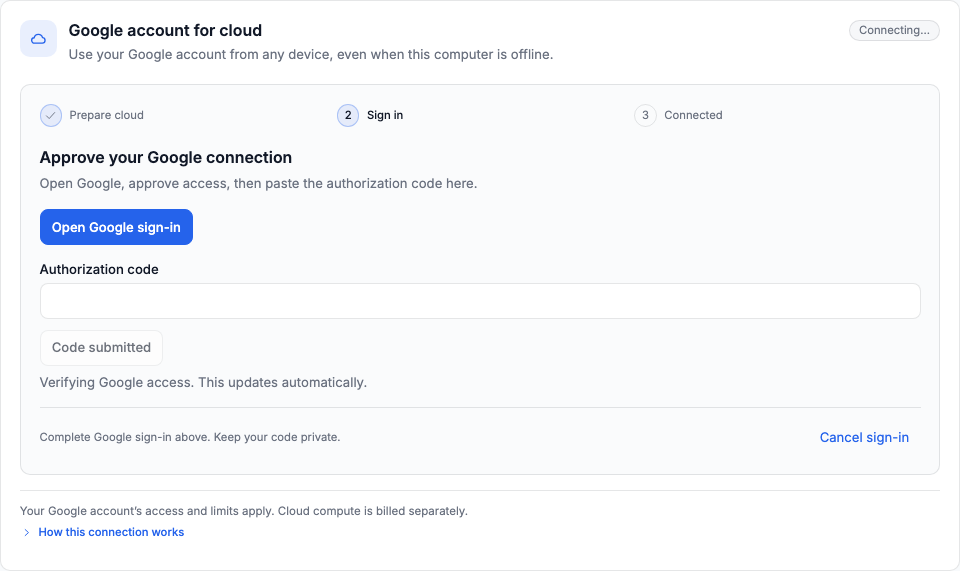
Run token-generating setup commands privately, with screen sharing and recording stopped. Ondago's credential fields remain masked and do not offer reveal or token-copy controls. Masking, removing a saved credential or closing a recording does not revoke an exposed token. Revoke or rotate it at the provider.
Upcoming Desktop and Web update, no feature flag: each agent runs in the cloud on access for its own provider. A Claude Code session needs Claude access (an Anthropic API key or a Claude subscription) and cannot use a ChatGPT connection or an OpenAI key. In the cloud review, choose another agent under Agent; each option says whether it can run in the cloud. The review says the session continues as a copy, and the original session stays unchanged. For Codex, choose ChatGPT account for cloud under Credentials for this transfer.
Choose the repository and worktree
The launcher groups linked worktrees under the repository Git reports and shows the branch, folder path and uncommitted-change state. Ordinary folders remain separate. Add existing folder selects a folder without creating one. Projects and Overview group a repository and its worktrees the same way, as one project named after the main checkout, and label a plain folder as a folder; see Projects and knowledge.
Opening a session from a phone keeps execution on its current computer or cloud host. Continue in the cloud and Continue locally change where work executes. Location and agent activity remain separate facts.
Confirm returned files and resumed work separately
A return can create a separate worktree when the original checkout has diverged or is behind the commit the cloud run started from. The updated receipt records that actual destination, and Ondago resumes the agent there. See where the work lands for each case. The original checkout remains available. Keep the return receipt and any reported backup until you have checked the result.
Returning files does not mean the agent has resumed, dependencies are installed or a development server works. Preview inspects the current project’s supported dev/start script. You can ask the agent to prepare it; dependency installation needs an explicit choice. Use a port reported in tool output or enter the actual port.
Stopping current work
In the upcoming coordinated update, Stop stays visible as Stopping until the selected turn ends. An acknowledgement alone does not mean that work has stopped. Updated Claude background workers interrupt current work through their owned attachment. Sessions in an original external terminal may only stop at the next tool boundary, as the control explains. Separately started background commands may keep running and have their own controls.
Open an authenticated web preview
Upcoming Desktop, Web and CLI update, no feature flag: Preview can discover common web app commands in the connected checkout and its nested packages. This needs an updated session host. Older hosts retain manual preparation and port entry.
- Open the connected session with permission to control it, then choose Preview.
- Choose an app under Apps in this project, for example Run website. Discovery reads project configuration without running it. The agent inspects the selected command, reuses a matching server or starts it, and reports its actual port. Allow dependency installation only if you want the agent to install the project’s declared dependencies.
- Follow the selected app’s progress. Use View session for approvals or to see the agent’s work. Ondago keeps waiting in the background and reopens the preview when the selected app and its initial assets pass checks. It does not create a new agent session or a public tunnel.
- If a check fails, fix the problem in the session and choose Retry preview. This checks the same port without sending another run request. If the app is not detected, expand Enter a port manually.
- Check the rendered app. HTTP responses alone do not prove it works correctly.
The popup starts compact, with app choices first, and expands for the running app. The URL and private-preview details stay in disclosures. Stop waiting or closing the popup stops automatic opening, but leaves the agent and development server running. A wait without a ready report ends after five minutes; check the session before sending another run request.
Requests, assets and WebSocket messages cross the authenticated encrypted session connection. The preview app runs on its own temporary browser origin. With the upcoming sessionSharing feature enabled (default OFF), the preview panel also offers a unique Preview URL for that session and selected port. Choose Open preview in new tab to show only the running app across the tab, with Ondago’s session controls hidden. Copied preview links open the same app-only view after sign-in and device approval. Loading or connection problems appear only when needed, and Retry preview checks access again after a failed or expired preview. Owners use their session link; invited people use the link from Shared app, after accepting their email-bound invitation. This applies to cloud sessions and shared local sessions. A local session’s computer must stay online. The URL grants no access by itself and each opening obtains its own temporary preview grant. Closing the panel revokes its grant; grants also expire after 15 minutes. If the isolated preview service cannot connect, the panel reports that preview is unavailable, keeps your selected port and lets you retry. An expired preview is labelled expired.
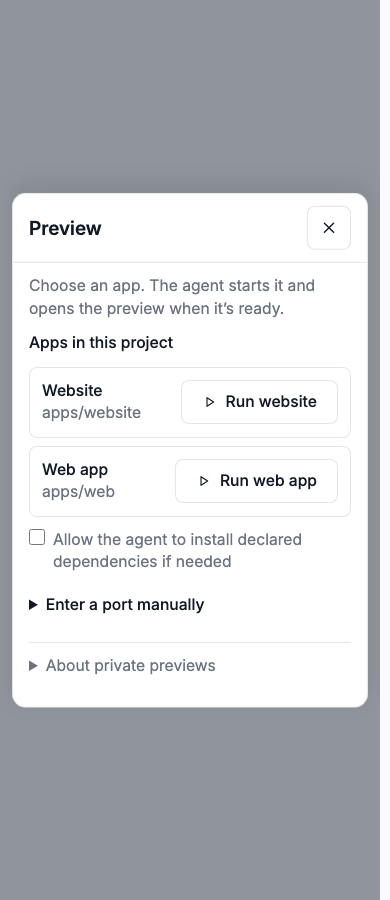
Current limits: ports 1024–65535 except the reserved host-health port 8080; HTTP request bodies and WebSocket messages up to 48 KiB; HTTP responses up to 8 MiB. Cookie-based app authentication, streaming responses, web workers, absolute asset URLs and external requests are not supported by this preview. Reopen after a lost connection. No public tunnel is started.
Recover without repeating the action
The upcoming release checks an unconfirmed cloud launch automatically when you return or reconnect. Recovery actions appear above the saved-session composer and in the cloud launcher. Choose Open session for a confirmed running session, or Check again when its status is unavailable. Cancel launch asks for confirmation and prevents a delayed attempt from starting again. A session saving before stopping remains pending until it ends. Your unsent draft stays in the current app while you check; recovery never sends it automatically. A finished attempt clears the block. If it failed, the recorded failure remains visible instead of being replaced by a generic ended message. An unavailable runner size asks you to choose Standard; retrying the same unavailable size does not help. These changes require the updated API and clients.
A GitHub push refusal offers Review GitHub permissions inside the session. Review repository scope and branch implications before an owner or admin changes access. Viewers cannot change it. Existing read-only sessions do not gain write access by enabling the workspace setting; you can move the work to your computer. Closing the review never retries a command.
Stop agent stays beside the composer while a turn runs. Development servers normally keep running, so a running server command alone is not evidence that the agent is stuck.
Transfer compatibility reports keep supported instructions and skills, explain adaptations and name omissions. Dependencies and system tools are managed at the destination. A configuration transfer does not prove behavioral parity; verify the app after continuing.
Understand collaboration and delivery
An Agent Discussion lets peers debate a question. Agent Collaboration adds a specialized agent to an existing main-agent session. Its automatic checks can be paused independently. The Agent Collaboration button in the session header counts a session’s specialized agents; with none yet, its menu offers Add a specialized agent, which opens the add form directly. A forwarded review reads Sending to the main agent…, Queued for the main agent and Sent to the main agent as the host takes it, and With the main agent only when the main agent’s conversation carries it; Delivery unconfirmed and Not delivered cover the rest. The older words Delivered to the main agent and Delivery failed are retired. These describe message delivery, not whether the main agent acted on the review. A message you type that is waiting in the queue uses the same words for the steps it can be at (Sending…, Queued, Delivery unconfirmed, Not delivered). A held message beside a background command, and recovery for an unconfirmed message, are explained under message delivery. Existing workspace availability controls still apply to Agent Collaboration.
The secondary Session panel starts collapsed and remembers your choice. Model, context and usage details remain available through the Session control; blocking questions remain in the conversation.
Agent Collaboration: Planned update#
Agent Collaboration: Planned update#
Upcoming update: a forwarded answer says where it has got to, and only as far as something proves it. It reads Sending to the main agent… while it is on its way, Queued for the main agent while the host holds it, and Sent to the main agent once the host has accepted it. It reads With the main agent, with a note that the main agent may not have acted on it yet, only when the main agent’s conversation actually carries the message. Delivery unconfirmed and Not delivered cover the other two cases, and while the session is disconnected an answer still on its way reads Not confirmed while disconnected. The older wording, Delivered to the main agent, claimed more than the host knew and is retired. Some agents, such as OpenCode, record no message identity, so a forward to them stays at Sent to the main agent, which is true. These words describe delivery, not whether the main agent did anything about the advice. A message you type that is waiting in the queue uses the same words for the steps it can be at (Sending…, Queued, Delivery unconfirmed, Not delivered); once it is delivered it leaves the queue and appears as an ordinary message. See recovery for a message that stays unconfirmed.
Agent Collaboration: Planned update#
Upcoming host update: an automatic reviewer does not review a turn that a forwarded answer started, so a reviewer cannot loop on its own advice. Your next message makes every automatic specialized agent due again, and that review still covers the forwarded turn.
Agent Collaboration: Availability and limits#
Availability and limits#
- In the upcoming release, Agent Collaboration has no workspace feature flag or paid-plan requirement. Updated local and cloud hosts provide it whenever the session is ready and supports it.
- You need a connected session and permission to control it. Read-only viewers cannot add, edit, remove, or ask specialized agents, and see the header button only when the session already has one.
- Agent Collaboration works beside a regular hosted session on your computer or in the cloud. It is unavailable inside an Agent Discussion, which has its own participants.
- Unforwarded answers belong to the live session and are not included in saved or transferred bundles. A forwarded answer becomes part of the main conversation and travels with it.
If the controls are missing, update the app and host, then reconnect to a supported session. If a coding agent is unavailable, check its installation and credentials on the computer or cloud environment running the session.
Agent Discussion: Planned update#
Upcoming update: while Session is selected, one line under the switch explains the other choice: Agent Discussion: 2 to 4 agents discuss your question with each other. You decide what gets built. Once you switch to Agent Discussion, the participants list gives its own explanation, so the two never appear together.
Agent Discussion: Planned update#
Upcoming composer update: the discussion topic uses the same message field as the session composer, with Add to message and voice typing inside the field. Add supported images or a sketch, or dictate and review your topic where voice typing is available. Enter starts the discussion and Shift+Enter adds a new line. On a phone, Enter adds a new line; tap Start discussion, which stays in the footer.
Agent Discussion: Planned update#
Upcoming participant defaults: new discussions suggest editable animal names with a playful twist, such as Professor Wombat, Captain Capybara, Disco Platypus, and Detective Goose. Ondago adds each available provider in Secure Cloud, or each available supported agent on a computer, up to the four-participant limit. One provider enabling several agents gets one default seat; a single available choice still supplies the two-participant minimum. You can change or remove participants before starting. Saved participant lists and names you have edited stay intact. A notice explains when all participants use the same agent, account, and model; change a participant if you want a different perspective. The agents and accounts offered depend on the selected location. For a computer-hosted discussion, keep that computer awake and online while using the discussion from another device.
Agent Discussion: Planned update#
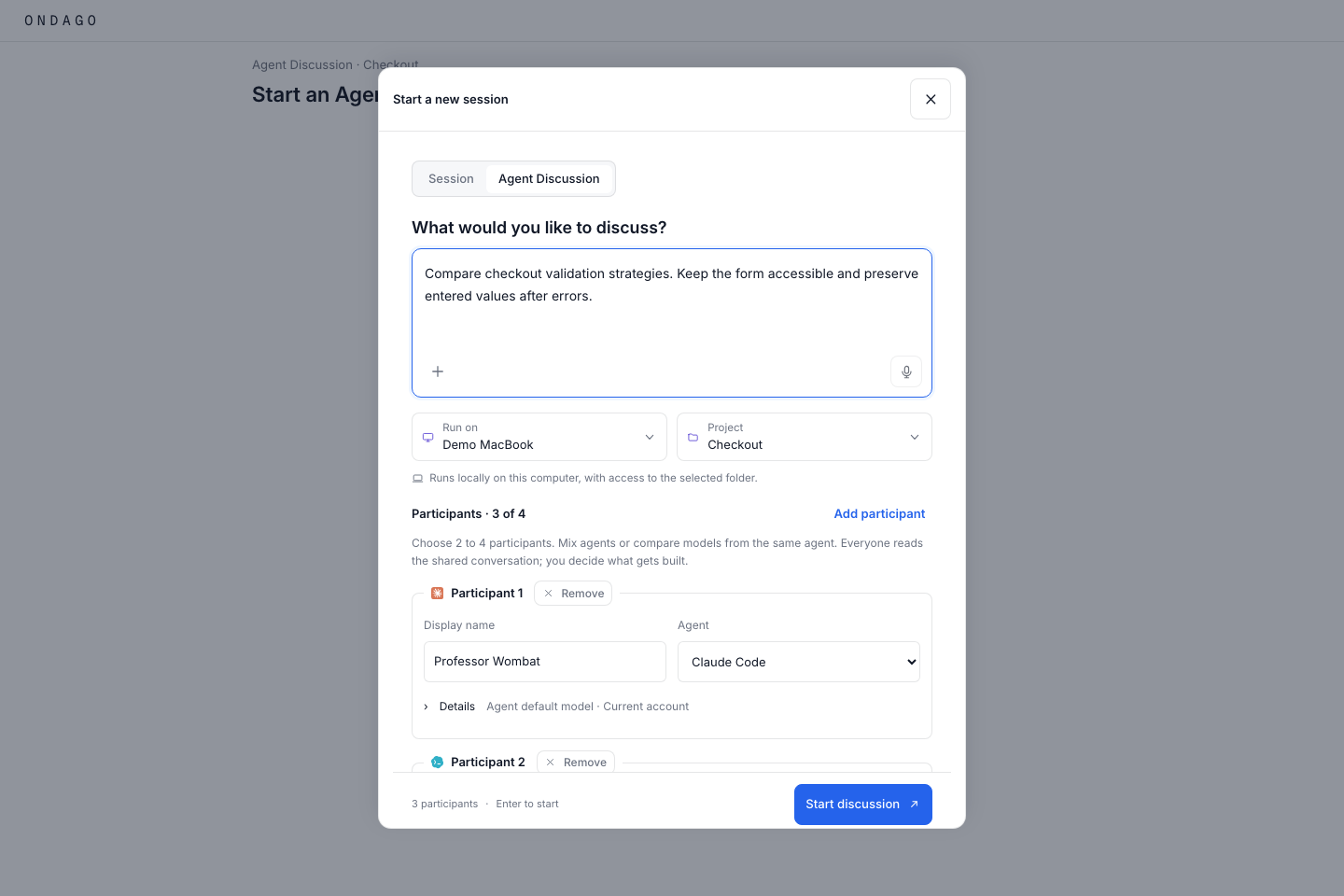
Agent Discussion: Planned update#
Upcoming update: active round progress and Stop discussion stay above the composer in Conversation, so you can stop without opening Details. Participant reference information remains in Details.
Workspace knowledge: Organized folders and connections: awaiting release#
Organized folders and connections: awaiting release#
This section previews an implementation that has not been released. Updated app, desktop, CLI, and server versions will be required. Workspace Knowledge must still be enabled.
The upcoming Add knowledge flow provides a six-area starter for Agents, Knowledge & references, Core context, Tools & workflows, Outputs, and Memory & decisions. Optional context questions lead to a preview and a saved draft. Existing files remain accessible.
Import copies selected files, folders, a Git revision from a connected computer, or a portable Ondago packet into a draft. Connect establishes a relationship that can be synchronized again. Connection review compares changes from both places and asks you to resolve conflicts. Incoming edits never publish themselves.
Saving in Ondago, writing files, committing locally, and pushing to a Git remote are separate actions. Existing sessions keep their pinned knowledge. A filesystem mirror does not activate native agent configuration. Project connections contain project-owned content, while workspace inheritance remains shared.
Ondago stores content and connection details encrypted. Copies on your computer or Git remote are ordinary plaintext protected by that computer and repository's access controls. Synchronization is manual, with reviewed removals, conflict choices, stale-preview protection, and retries for interrupted operations. Diverged Git history and unrelated incoming changes require integration on the computer.
Workspace knowledge: Planned update#
Upcoming update: edits made while a draft is saving or a revision is publishing remain in the editor as unsaved changes. The completed operation uses the snapshot you submitted; save and review your newer edits separately. The same protection applies to Save progress in the proposal editor.
Workspace knowledge: What a session receives#
What a session receives#
In the upcoming app and CLI update: new local sessions reuse knowledge already applied to their folder without fetching published knowledge or showing the same review again. Local file changes or changed agent settings still require review. Apply published updates from project Knowledge when you want to use them.
When a new session starts with knowledge, Ondago resolves the published workspace and selected project revisions into a snapshot. That snapshot records the combined entries and their source revisions. A launch using Workspace knowledge only receives the workspace guidance without project additions or overrides.
Existing sessions keep their original snapshot. Publishing a new workspace or project revision affects later snapshots; it does not silently change a running session. A saved session carries its snapshot when pulled or continued in the cloud.
An inherited entry uses the workspace revision selected for the new snapshot. A project replacement continues to replace that entry until the project restores inheritance. Review project overrides when updating shared guidance.
Workspace knowledge: Continue work and plan features#
Continue work and plan features#
Upcoming Desktop and Web update: in session details, the Folder row offers Add to project when no project holds the folder. Choose New project and a name to create one linked to this folder, or pick a project you can edit to link the folder to it. Files stay where they are; the action appears only for folders on your computers, never for a cloud run’s checkout.
In session details, open Continuation brief to copy or download the goal, recorded progress, verification evidence and remaining tasks. The brief is extracted locally from the available transcript and keeps agent claims separate from verification output.
In Knowledge actions, choose Add feature-spec workflow to add a reusable skill for requirements, design and implementation tasks. Review the draft and publish it to make the skill available to new sessions.
Projects and knowledge: Browse projects and linked folders#
Browse projects and linked folders#
Upcoming loading-state fix: the Projects Suggestions tab waits for session discovery before showing an empty result. While discovery runs, it shows placeholders; unavailable sources offer Retry. Known suggestions stay visible during updates or partial failures. Project rows also wait for session discovery before claiming zero sessions; unknown activity and counts say Unavailable if discovery fails.
Upcoming Desktop and Web update: Projects, the project explorer and global project search are available in every workspace without a feature flag, including workspaces that previously disabled Projects view. Existing projects and sessions are retained. The project explorer places All sessions directly below Home, followed by your projects. Needs you is available as a session filter rather than a separate sidebar item. Click the Projects heading row to open the projects page (the plus creates a project), or a project name to open its details. Use global search (⌘K on Mac, Ctrl+K on Windows) to find projects by name. Select a project result to open its details, or a linked-folder result to browse its sessions. The sidebar lists all active projects without a separate search box. Expand a project and choose a linked folder to browse its sessions. Upcoming update: a project lists one row per folder or repository. A folder shows a folder icon and its name. A repository shows the Git icon and org/repo, and a repository you have a local copy of reads org/repo (folder). Linking a repository and a folder that is a copy of it gives one row in either order, and existing projects move to this view by themselves once the computer holding the folder has reported from an updated Desktop. Adding a folder next to one already linked, or inside it, adds a row and changes nothing else. A plain folder inside a linked repository keeps its own folder row. Secure Cloud is where a session runs, not part of a project, so it no longer appears under one. Cloud sessions on a repository appear on that repository’s row, including when you only linked the local copy. A cloud session on a repository the project does not list, or on an empty folder, belongs to no project and is in All sessions, and a session you continue in the cloud stays on the row of the folder it came from. An explicit assignment to another project still takes priority. Upcoming fix: finished cloud sessions retain their repository association while their result is being saved and after it appears. Cloud checkout folders such as /work and /workspace are not offered as local folders to link. Use All sessions in this project in the list footer to widen a folder to the complete project list, and Project overview there to open the project's page. An orange count badge on a project shows how many sessions need your input. A small orange dot without a number identifies each linked folder that has a session waiting for input. A blue dot beside a folder or its project means a session there is working, including when the project is collapsed. Both indicators can appear together and clear when their states end. On desktop layouts, drag the sidebar’s right edge to resize it. The width is remembered on this device. Double-click the edge to reset, or focus it and use the arrow keys. In Desktop, Collapse sidebar keeps a narrow rail with navigation icons, project initials, usage and your account. Hover an icon for its label. Use Expand sidebar in the rail or title bar to restore the previous width and expanded folders. In project details, Show all sessions above the preview opens the full session list for that project. Selecting a linked folder immediately opens its latest available session, replacing the previously viewed conversation. Clicking the same folder again returns to its latest session. Upcoming phone fix: on a phone, tapping a linked folder in the Projects sheet opens that folder's list of sessions rather than its latest session. Background refreshes preserve the session you selected; when no session is selected, Desktop opens the latest matching session. Unlinked sessions remain available in All sessions. The Location dropdown remains visible above the session search on desktop in every explorer scope. The Project dropdown appears only in All sessions. Compact All, Needs you, Working, and History buttons span the list width and filter status. Manage a project’s folders and repositories from its three-dot menu; this action is no longer repeated in the session-list header. Changing Location resets the Project filter. On a phone, open Projects to choose a scope and Filters to choose Location, with Project available only in All sessions.
Upcoming Desktop and Web update: a project can hold connected GitHub repositories beside its folders, so work on your computer and work in Secure Cloud stay in one project. Open Manage folders and repositories from the project’s three-dot menu, choose Connected repository, select a repository, and choose Link repository. A linked repository needs no folder on any computer. It appears in the sidebar under the project, and selecting it shows the cloud sessions that cloned it. A new session started from it runs in Secure Cloud. When a project links one repository, the cloud launcher fills it in; with several, you choose one. To record a clone of a linked repository, add its folder and select Another location of a linked folder or repository. Repositories come from your workspace’s GitHub connection under Settings, so connect GitHub there first. Unlinking a repository changes nothing on GitHub and offers Undo.
Create a project with a name, then use Manage folders and repositories to attach folders reported by your computers. Search by folder name, computer or path, select the folder, and choose Link folder. The dialog separates linked folders from available folders and keeps the link action visible. For a folder without sessions, choose Enter folder path, select its computer, enter the full absolute path, and choose Link folder. This saves the association; it does not create the folder or check that it exists. On Desktop, select the computer running the app and use Browse… beside the path to choose a folder. Cancelling preserves the entered path. For other computers or in the web app, enter the path manually. To associate another copy of a linked folder, select Another location of an existing folder and choose the existing folder. Upcoming mobile web update: when Projects view is enabled, use Projects between Sessions and Insights in the bottom navigation to open the project navigator. The five compact buttons replace the floating Projects shortcut. With Projects view off, the four-button navigation stays unchanged. Folder links organize sessions; they do not move or synchronize files. Identical folder names or paths on different computers remain separate unless you explicitly link those locations. Unlinking offers Undo. Pins and expanded projects are remembered on this device.
Use the project actions menu to open its home, rename it, pin it, or manage its linked folders. Rename project updates its display name while preserving its folder links. On the Projects page, open a suggested folder’s menu and choose Add to existing project, select a project you can edit, then choose Add folder. If the folder was reported by multiple computers, choose its location first. The folder disappears from suggestions once all its reported locations are linked. Creating a project from a folder saves its folder link at the same time, and new or updated projects appear in the sidebar automatically. The session list’s blue New session button remains the primary action even when sessions are already listed. Its left-aligned options have small icons. Click outside the menu or press Escape to dismiss it; choosing an option also closes it. Archive from linked-folder management; archived projects remain available for restoration. Other destinations and the account menu stay visible below the project list, without opening a More menu.
Projects and knowledge: Planned update#
A guest receives access to the shared conversation, posted attachments that could be saved, specialized-agent replies, and changes attributed to the session. This does not grant workspace membership, repository browsing, terminal access, or bundle downloads. Participants can request agent input. In the upcoming shared-control update, Can drive also lets a person stop the current turn and remove queued messages. The owner separately chooses whether each driver may answer tool permission requests, initially off. Permission delegation does not include authentication, plan decisions, persistent trust changes, or managing invitations. Existing workspace members keep their normal permissions.
Projects and knowledge: Planned update#
Upcoming update: the invitation page introduces Ondago, shows the account you are joining with, and offers Join session. If the conversation shows Waiting for secure access, your invitation has been accepted but this device has not received its encryption key yet. Ask the owner to open the shared session in Ondago and keep it open. The page checks automatically; Check again retries immediately. Saved history can be read offline from the host only after your device receives its key. Waiting for shared history means the owner has not published the conversation yet.
Projects and knowledge: Planned update#
The released preview requires the owner’s session view for guest agent requests. Upcoming update: after initial device approval and a secure handoff to an updated session host, participants can message agents and read their replies while the owner has Ondago closed or is signed out. The computer or cloud host running the session must remain reachable for agent messages. Comments can be posted while both the owner and host are offline. An unconfirmed delivery is shown as unconfirmed, so check the conversation before sending the same request again. New device approval and key changes still require the owner. This update requires the updated server, clients and host in a workspace with sharing enabled. Previously published encrypted history remains readable when the host is offline on approved devices. Sharing does not yet follow a continuation to another session. Upcoming shared app previews: the owner can verify and share selected development-server ports. Guests choose Open app in the shared session and use a private encrypted connection on an isolated preview origin. App access allows interaction, including forms and changes to app data, and the server may treat requests as localhost. No public preview URL is created. Preview access expires after 15 minutes; reopen it from the session. Removing access or unsharing closes active connections when the host receives the change, with a 15-second authorization bound if connectivity is lost. These controls require the updated API, realtime-compatible clients and host, and the existing session sharing workspace switch, which remains off by default.
Projects and knowledge: Planned update#
Upcoming update: a Git repository and its linked worktrees are one project, named after the main checkout, in Projects, its suggestions, the create flow and Overview. A session that ran in repo/.claude/worktrees/feature is listed under the repository and not as a project of its own, and a project saved at the repository’s folder counts and lists its worktrees’ sessions. Each suggestion says what the folder is, such as app · Git repository · ~/code/app or Dev · Folder, no Git repository · ~/Dev, so a plain folder that only holds repositories is labelled as a folder and never as a repository. A folder Git could not describe, and a folder on a computer on an older version, keep their recorded path and carry no label rather than a guess; a worktree that has since been removed also stays a separate row. The cloud run’s working folder (/work) is not listed as a project unless a computer reports it as a real folder.
Projects and knowledge: Read project sessions#
Read project sessions#
Upcoming Desktop and Web update: project details show a loading preview while session sources are being read, then show the sessions found or an empty card with a clear next action. Loaded rows remain visible while more sessions arrive. Failed reads offer Retry.
Each project session row includes a Context column. Desktop shows the latest reported context percentage when the session reports both usage and window capacity. Upcoming Claude Code support: when capacity is absent, the row shows the latest prompt token count, including cached input, with the exact count in details. The count refreshes after Claude reports another request; compaction clears the previous measurement. Cloud counts appear after you connect to that session on this device. Unavailable means no usable measurement is available; a reported zero is shown as zero. Select the row’s chevron to expand available details such as model, folder, location, activity times, recorded event count and context token counts. Select the session title to open the conversation.
Projects and knowledge: Opt out of project sessions#
Opt out of project sessions#
Upcoming update: the Projects list will offer an Opt-out shortcut. Until your app includes it, use Insights → Manage projects → Exclude project → Save mappings.
- Open Projects and find the saved project or suggested folder.
- Open its More actions (⋯) menu and choose Opt-out.
- Check the project identity and cleanup explanation, then confirm Opt-out. Confirming saves your choice and applies the session-reading policy.
This is your account’s setting across workspaces and updated, connected computers. Other workspace members keep their own settings. Repository projects can be excluded from Desktop or Web; local folders must be identified in Desktop on the computer containing the folder.
Opting out stops session reading, clears local previews and search data, removes your published Insights, and queues recoverable deletion of your cloud copies. Original agent files and the saved project remain. Running cloud sessions remain accessible until they finish; offline computers apply the exclusion when they reconnect. Older copies that cannot be reliably matched may require attention.
Upcoming performance fix: saving will finish after the policy is applied, while cache maintenance, cloud cleanup, and report refreshes continue in the background. Review cleanup progress in Insights → Manage projects. To undo the choice, find the project under Excluded projects and choose Include again across workspaces. Including it again allows rediscovery; it does not automatically restore deleted cloud copies. Dismiss suggestion only hides a suggestion, and archiving a project keeps its sessions.
Projects and knowledge: Keep folders out with exclusion rules#
Keep folders out with exclusion rules#
Upcoming update: the Projects page gains an Exclusions tab beside Suggestions. A rule is a pattern that keeps matching folders out of suggestions and out of session reading on your connected computers, including folders you have not made yet, which the by-name opt-out above cannot do.
- Open Projects → Exclusions.
- Type a rule under Add a rule. A folder pattern such as
~/.openmausbotcovers that folder and everything beneath it:~is your home folder on any computer,*is one name,**is any depth and?is one character, and matching ignores letter case. For a regular expression, wrap it in slashes, such as/scratch-\d+/i; lookaround and backreferences are not supported, so the same rule applies on every computer. - Read the preview, which names the kind of rule and how many suggested folders it hides, then choose Add rule.
Each rule lists what it hides. Remove a rule to offer those folders again and resume reading their sessions. Rules are your account’s setting: a rule saved in one workspace applies in your other workspaces and on your updated, connected computers, and the tab counts rules saved elsewhere. Other members keep their own rules. A saved project is never hidden by a rule. The Suggestions tab says how many folders your rules hid. The tab also lists the projects you opted out of by name; include one again in Insights → Manage projects.
Continue anywhere: Planned update#
Upcoming update: the action reads Continue in the cloud everywhere in the app (it has read Continue in cloud, Continue in Cloud and Move to cloud), and bringing a session back reads Continue locally. If something stands in the way, pressing it opens the checklist of what to fix, or says why it cannot start. Two places work differently: in a session's actions menu, a choice that cannot run is shown as unavailable with its reason beside it, and during Desktop setup the transfer's Continue in the cloud waits until setup's own checks finish.
Continue anywhere: Planned update#
Upcoming update: files over 64 MiB are named on the transfer sheet and left out, and a folder over its total limit is refused before anything uploads. See troubleshooting for slow connections and the fixes.
Continue anywhere: Planned update#
Upcoming update: after Continue in cloud or ondago handoff, the cloud agent waits for your next message instead of taking a turn on its own, unless the agent was in the middle of a task when you continued it. This covers a saved session, an agent that had finished its turn or was waiting for your answer, and any session where Ondago cannot tell that the agent was working. An ondago handoff run on a folder without naming a session still continues the agent’s task. Open the session and send a message to carry on. The harness overview above still applies when a task was interrupted, and to ondago lift. When the transfer succeeds, the sheet says your session has reached Secure Cloud and leads with Open session; continuing on your phone is optional. A connected session does not confirm provider credentials or access to the selected model. Send a message and check the response before relying on the cloud agent to keep working.
Continue anywhere: Continue a saved local conversation#
Continue a saved local conversation#
Upcoming coordinated CLI and Desktop update: sending in a saved local conversation continues that same session after an unsuccessful connection check. Opening the conversation alone does not start the agent. If another native app still owns the session, Ondago keeps its ownership protection and explains how to proceed. A failed connection keeps your unsent message available for recovery. If the project folder was moved or removed, the message names that folder problem. Restore the folder at its original location before retrying.
Continue anywhere: Keep the model selected in a returned Codex session#
Keep the model selected in a returned Codex session#
Upcoming CLI and Desktop update: when cloud work returns to its original Codex conversation, continuing through Ondago uses the latest model recorded in that returned checkpoint. An older local model setting will not silently replace it. Desktop also shows the latest recorded model in the saved conversation summary. A model you explicitly choose for the next message takes priority. Once the conversation records newer local work or settings, later resumes keep those newer choices.
Continue anywhere: Keep the original agent when continuing a saved session#
Keep the original agent when continuing a saved session#
Upcoming Desktop and Web update: a saved session defaults to its original agent. If that agent has no cloud access, connect its cloud account or API key instead of automatically switching to another agent. Desktop offers the original agent’s cloud setup from Set up agent access. A local sign-in and a saved cloud connection are separate.
You can explicitly choose another available agent for that saved session. Ondago then identifies the converted conversation before you send. Your choice does not change the default agent for other saved sessions.
Continue anywhere: Planned update#
Upcoming CLI and Desktop update: Always On also covers Codex sessions on a computer that allows Codex under Settings, Local history. A run with nobody at it, such as codex exec, takes no place. If a Codex session changed both here and in the cloud, Ondago offers to keep both versions, as it does for Claude Code. A session you pin in Desktop takes a place after the sessions you keep and ahead of the most recent ones, so several pins can move a recent session out of its place. A pin on your phone stays a favourite on that phone.
Continue anywhere: Planned update#
Upcoming Desktop update: sending a message while viewing a recorded search match returns you to the current conversation, so you can follow the new request and response. If a saved session cannot start before your message is sent, its message remains available to retry.
Continue anywhere: Planned update#
Upcoming Desktop update: after a successful return, Open local session opens the restored conversation on this computer. Closing the completed return also selects that conversation. The restored-files confirmation does not guarantee that the provider will accept the next message; a credential or model-access error appears in the conversation.
Continue anywhere: Planned update#
Upcoming CLI and Desktop update: Ondago protects your checkout the same way for a cloud session started from a GitHub repository as for a returned result. If your checkout stands on the commit the cloud run started from, the work lands in it as uncommitted changes and your branch does not move; commit or stash your own changes first, because a pull over uncommitted changes stops before changing anything. If your checkout is behind that commit, or has commits the run never saw, your checkout is not touched at all. The work goes to a separate folder beside it, named <repo>-ondago-<session>, on the branch ondago/<session>, and the report names the next steps: change into the folder, merge the branch when you are ready, and remove the worktree afterwards. A checkout cloned over SSH counts as the same GitHub repository the cloud cloned over HTTPS. Ondago does not run your repository’s Git hooks when it creates that folder or commits the work in it; your hooks run when you merge. If the repository uses Git LFS, install Git LFS on this computer first.
Continue anywhere: Planned update#
Upcoming Desktop update: a session started from a GitHub repository records no folder on your computer, so the pull form lists your own checkouts of that repository under This repository on this computer, main checkouts first and worktrees after. Choosing a row fills the folder field exactly as typing would, and nothing is pulled until you choose Pull; Ondago never picks the destination for you. If a pull fails before anything is imported, the sheet shows the lines the CLI and Git printed and offers Continue in another folder as the main action. Read what each line means.
Continue anywhere: Planned update#
Upcoming Desktop update: when you choose Continue working after pulling a session from Secure Cloud, the agent starts with a short note that the session moved. Files Git ignores, such as build output and installed dependencies, were not carried and may be missing or out of date, and servers started in the cloud are not running here. An agent that is already running is not sent the note. If the agent cannot be started, the sheet says so once, and the next press of Continue working opens the session without it.
Continue anywhere: Planned update#
Upcoming update: Ondago opens the confirmed destination conversation and carries your draft with it. Project files and uncommitted changes remain in the same project, and the original conversation stays available. Retry follows the same switch and native copy. Finish or stop an active turn before switching. Permission changes and omitted approval checks require your review; optional incompatibilities stay in details. Moving execution to another computer or Secure Cloud remains a separate action.
Codex & ChatGPT subscription: Planned update#
Codex & ChatGPT subscription: 3. Approve the sign-in on OpenAI’s website#
3. Approve the sign-in on OpenAI’s website#
- When Ondago displays a one-time code, select Copy code.
- Select Open ChatGPT sign-in. Check that the browser address is auth.openai.com/codex/device.
- Sign in with the intended ChatGPT account, enter the code from Ondago, and follow OpenAI’s approval prompts.
- Return to Ondago. Wait for Connected in cloud (Connected in the cloud in the upcoming release), or select Check connection to refresh the status.
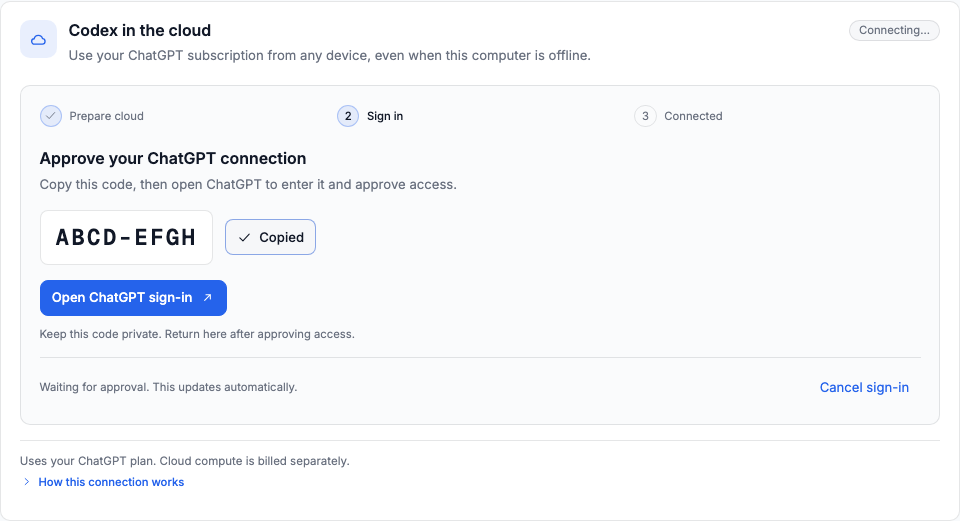
A browser approval alone is not the final check. Wait for Ondago to confirm that the cloud connection is saved.
Codex & ChatGPT subscription: Planned update#
When launching a supported Codex cloud session, select your saved ChatGPT account as its access method. In the upcoming Desktop transfer flow, return to the provider step and select Review transfer. Review the selected agent access and files before confirming.
Task connections: Planned workflow#
Connect a workspace#
An owner or admin opens Settings → Connections, authorizes Jira Cloud or Linear, or selects an existing GitHub App installation. Then they choose the Jira projects, Linear teams or GitHub repositories to share.
Members use the connected identity. These are shared workspace connections, so choose resources that all workspace members may read. Viewers can browse; owners, admins and members can post updates.
GitHub Issues requires the installation owner to approve Issues permission. Existing clone and push settings remain separate.
Work from a task#
Open Tasks, choose a connection and resource, and search. Read a task and select the comments to include, then choose Start session. Review the opening context and select cloud or a computer in the existing launcher.
The linked task appears in the session. Post update lets you review a comment, optionally change status and include an Ondago session link. Nothing is posted automatically. Opening an Ondago link still requires workspace access.
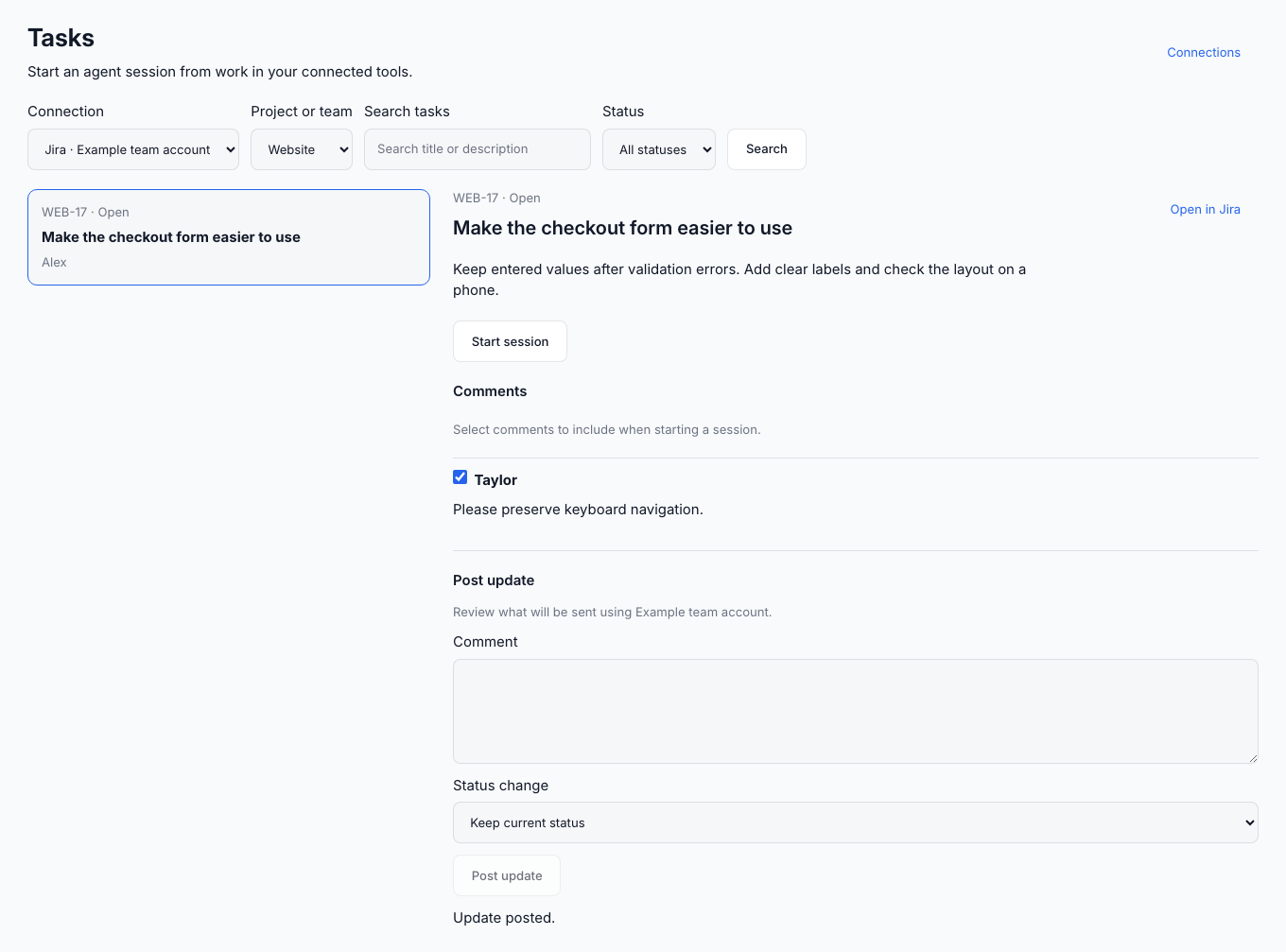
Live task tools#
New Claude Code sessions on an updated cloud or computer runtime can use the connections selected in the launcher. Other agents can receive the task’s opening context. Live tools are not yet added to a session you continue from a saved copy or pull back to a computer. The launcher shows these limits before you start. If live task tools cannot be activated, the launch stops before the agent’s first message. Start a new session from Ondago. Agent writes remain subject to the agent’s tool-approval policy.
Jira creation supports text, number and single-choice fields. Issue types with unsupported required fields must be created in Jira. Boards, attachments, bulk changes and automatic synchronization are outside this preview.
Access and privacy#
Ondago processes task content requested from a connected provider. Provider credentials are encrypted on the server, separately from end-to-end encrypted sessions. Only the session creator can save or replace its task link. The selected task-to-session association is encrypted by your device; Tasks finds associated sessions by fetching and decrypting those associations locally.
Turning the workspace flag off blocks further task API and agent-tool calls. Disconnecting removes this workspace’s credentials without revoking another workspace’s connection. An authorization revoked at the provider can affect that provider’s wider grant.
Agent credentials are bound to one live session and expire within 24 hours. Closing the session revokes them. A continuation carries the encrypted task association along cloud bundle lineage, but never reuses a credential from the previous session. Task links do not follow computer-only continuations or offline exports.
If authorization expires or a refreshed credential cannot be saved, Connections shows Reconnect. An owner or admin must authorize that account again.
Troubleshooting: Stop a Codex turn or a background command#
Stop a Codex turn or a background command#
Upcoming CLI update: stopping a Codex turn does not stop commands it left running. With a compatible Codex App Server, Ondago lists those commands separately and offers Stop for each one, including after the turn ends. When those commands are present, Stop current turn names the separate action that interrupts the model. Open the background command count between the status row and message box to view those controls. Each command’s Stop ends only that selected command. Older runtimes can use /ps and /stop in the original Codex terminal.
A retry to continue a saved conversation will discard a failed connection that is still closing, then check the native session owner again. It does not resend an earlier message automatically. The connected-terminal check will accept Codex installations that provide the required daemon and Unix socket controls, including compatible npm installations. This does not change the separate Move control compatibility requirement. On Linux, install lsof if native session transfer asks for it so Ondago can verify the original writer.
A shared Codex backend can retain an idle conversation after its terminal closes. In the upcoming coordinated CLI and Desktop update, restoring verified Codex history first releases Ondago’s own idle connection and removes its old restart receipt. Close any remaining local control view first. Active turns, queued messages, background commands and other controllers still prevent that release. When the shared writer still holds the conversation, Desktop explains the wait, offers Continue in another folder, and labels the other action Retry after Codex releases it. Returning cloud work over that same native history must wait until Codex releases its writer lock. Keep the cloud checkpoint and retry after release, or continue a separate copy in another folder. Ondago does not stop a shared backend or overwrite locked history.
Troubleshooting: Planned update#
Leave the session in Ondago, on your computer and on your phone, and wait. Upcoming CLI update: Ondago lets go about a minute after nobody is using the session, down from about ten. Then press R in Codex to continue. A running turn or a queued message keeps the session open until it finishes.
Troubleshooting: Web activity appears as JSON in a transcript#
Web activity appears as JSON in a transcript#
Upcoming update: supported web-search and page-opening records will appear as readable cards in Desktop and Web transcripts. Search cards show linked source titles, domains and short previews, with a single search query shown above the sources. A search result without a title uses its destination domain. Opened files without titles use short paths to distinguish them. Missing titles no longer turn the whole card back into raw JSON; page-opening records use a Web page label. Page results that omit their own URL can use the requested page address, including results reporting Internal Error. The card preserves the reported error and does not imply the page loaded successfully. Choose Original data to inspect the full record, or expand additional search results and queries. Older apps and unsupported record formats may still show the original text.
Troubleshooting: Antigravity appears twice and one conversation is empty#
Antigravity appears twice and one conversation is empty#
Upcoming fix: new Antigravity launches will follow the conversation ID confirmed by AGY, so the live connection and local history appear as one session. Some AGY versions replace the ID prepared at launch, leaving the older host watching an empty conversation. Until you update, open the row containing your history. A card that offers loading text, tips, or queued input as answers is a terminal-detection mistake; it is not an Antigravity permission request. The upcoming fix also removes that false card.
Troubleshooting: Blank space below a local conversation#
Blank space below a local conversation#
Upcoming fix: local transcripts will scroll within the conversation while the message composer stays at the bottom of the pane. This fixes a blank area and a moving composer that can appear in Antigravity and other locally read agent histories. Scrolling back, using Jump to top or Jump to bottom, and switching sessions will keep the surrounding pane in place.
Troubleshooting: Planned update#
Upcoming fix: Ondago will check Claude compatibility before asking for account status and explain when an update is needed. The updated Desktop app will exclude initialization-only warmup workers from discovery and search, including previously cached entries. Genuine conversations named Warmup or auth, and workers that proceed to real tasks, remain visible. Native transcript files are preserved; existing auth sessions are not automatically removed.
Troubleshooting: Planned update#
Upcoming fix: Codex titles will use the actual request when no custom name is available. With the updated API and app, automatic recovery backups will be hidden from session lists while their owning session is available. Backups are snapshots, so they will not appear under Previous or create a continuation marker in the transcript. A backup will remain separately accessible if its owning session is unavailable.
Troubleshooting: Planned update#
For a connection timeout, check your network connection and retry. The next Desktop update distinguishes a stopped CLI from a timed-out connection check.
Troubleshooting: Planned update#
Upcoming update: on a Mac, the CLI follows the proxy in your network settings. If your network reaches the internet only through a proxy, see Environment overrides.
Troubleshooting: Planned update#
Upcoming update: if ondago machine status says Signed out by the API, the account no longer accepts this computer’s sign-in (for example, it was deleted). Sign in again with ondago login or in Ondago Desktop, and remote access resumes by itself. If the account is still valid, the computer checks again every 30 minutes and reconnects without a new sign-in.
Troubleshooting: Planned update#
In the next Desktop and CLI update: a readable conversation with no messaging connection shows Messaging unavailable. Use Connect terminal or window when offered, or reply in the original app. Check connection checks again after connecting it. Connection details shows the transport and connection stage. These actions do not resend a message.
Troubleshooting: Planned update#
In the next CLI update: long-running Claude terminal sessions remain connectable after temporary socket files are cleaned up. Update the CLI and choose Check connection. Ondago verifies the original running session before connecting; opening it does not start another agent.
Troubleshooting: Planned update#
In the next CLI update: Codex handoffs support the structured source metadata used by subagent sessions. If an older CLI reports carries no session_meta while preparing a Codex transfer, update the source CLI and retry. A file whose metadata is genuinely missing or malformed still needs investigation; Ondago does not invent replacement history.
Troubleshooting: Planned update#
Upcoming Desktop and Web update: if the conversation connection fails while the computer still appears online, Ondago reconnects and reloads the conversation automatically. Repeated failures use increasing retry delays. A message marked Outcome unknown is not resent automatically; check the conversation before sending it again.
Troubleshooting: Planned update#
If you started hosting with ondago serve, keep that terminal open. Upcoming update: if the account no longer accepts this computer’s sign-in (for example, it was deleted), ondago serve ends once its reconnect attempts have been refused for two minutes, with “This computer is signed out of Ondago. Run ondago login, then start the session again.” The conversation is kept: sign in, then start it again. A session served with -mirror keeps running in its terminal. In Desktop, finish any setup checks or use their retry action. A saved snapshot or an unexpired synced reading copy can still be readable when the source computer is offline, but it cannot accept messages.
Troubleshooting: A cloud continuation did not start#
A cloud continuation did not start#
Upcoming Desktop and Web update: after Ondago confirms that a cloud launch has ended, choose Start a new attempt to send your retained draft in a new session. This also applies when setup fails before the encrypted connection is ready or the agent exits before connecting. Review your retained draft before sending it again. Checking a launch never resends the task. If cancellation is still saving work, Ondago keeps the attempt blocked until it confirms the session has ended. If the previous outcome is still unknown, use Check again or Cancel launch until Ondago can confirm its state.
Codex permissions: Implement mode does not grant file-write access. A continued session uses the destination agent’s effective permissions; a temporary permission flag used in the source terminal is not copied as configuration. Review Permissions in the session panel before requesting file changes. Upcoming app update: built-in profiles use readable labels, and a read-only profile explains why edits are unavailable. Ondago does not silently broaden the permission policy.
Read the transfer result: a successful save can be followed by a refused cloud launch. Check provider credentials, repository connections, workspace allowances, and the agent’s supported actions.
ondago runs
ondago limits
Do not close the source computer until the destination is confirmed. If a run ended, inspect it with ondago runs RUN_ID.
Upcoming CLI update: retrying a transfer will recognize the personal workspace by either its ID or its personal-workspace alias. An attempt that stopped during preparation without recording a cloud destination will be withdrawn safely before retrying, including its pending stop request. If the existing transfer really belongs to another server, workspace, agent, or project folder, the error will identify what differs. Select the original context and open that session in Sessions. Keep recovery files until any cloud work has been brought back.
Upcoming coordinated Desktop, CLI, and API update: use Cancel transfer to withdraw a running or failed handoff. If safe cancellation cannot finish, Force cancel asks before releasing the local transfer record. The cloud copy may still be running, and its changes are not collected. The recovery record is kept.
On an existing cloud continuation, Start a separate cloud copy asks before starting again from this computer's conversation and files. The original stays in Sessions. Its later changes are not included in the new copy. Workspace usage and concurrent-session limits still apply.
Upcoming update: on a slow connection, Continue in the cloud keeps the cloud session waiting while your upload is visibly progressing, for up to an hour, instead of failing after two minutes. A link that stops moving for about a minute and a half is retried. If the upload keeps failing, the transfer ends with a message saying so. Try again on a steadier connection.
Upcoming update: if the project folder is over the transfer limit, Ondago says so before anything uploads and names the largest files. Leave them out of the transfer or link the repository, then try again.
Upcoming update: the monthly cloud time meter shows time spent. The time a running session has reserved is shown separately. If the one-at-a-time limit blocks a new cloud session, the checklist offers to stop your own running session.
Upcoming update: when a start on another computer, an Agent Discussion or a cloud transfer fails, Desktop says what failed and what to do next in plain words, and keeps the original error under a details disclosure.
Troubleshooting: A cloud run stopped with an error#
A cloud run stopped with an error#
Upcoming Desktop, Web, CLI and cloud update: when the agent in a cloud run stops unexpectedly, the run now saves the work it holds and reports the run as failed with that saved session, instead of ending with nothing. The run's row keeps Couldn't complete. Open the session from the run's card once it appears in your list.
If the run could not save at the end, its row takes the title of its last automatic backup and adds a line such as Backup from 12:04, and the card offers Open last backup. The card says when the backup was taken and how long before the run stopped. It never calls a backup a saved result. If nothing was saved and no backup is available, it says so.
To bring a backup to your computer from a terminal, look up the run first. When the run kept a backup, its explanation ends with a line such as Pull the backup with: ondago pull BACKUP_ID:
ondago runs RUN_IDThen pull the backup into a new, empty folder:
ondago pull BACKUP_ID -dir ~/projects/example-app-backupUpcoming cloud update: a backup of a run started from a GitHub repository keeps that repository. Continuing it in Secure Cloud restores the run's branch on the commit the run started from, with its changes on top, and the new run can push when the original run could. Pulled into an empty folder, the backup clones the repository there using your own Git access. Pulled into your checkout of the repository, it lands the way a finished cloud session does (see where the work lands).
When a run stopped because the agent hit the cloud runner's memory limit, the card says so and names the limit. If your workspace allows Large or Max runners, choose Choose a larger runner to open the runner settings, then start the work again. The button is not shown when the run was already on Max; use Contact us and include the technical details, which stay open on the card. See Choose a cloud runner for the workspace setting.
Deleting a run's row, including with Stop and delete, also deletes its automatic backup, and the delete sheet says so first. A backup that another session has already continued from is kept, and the sheet says that instead.
Runs that started before the cloud release that carries this change can still end without a save. A run row leaves the list a week after it ended; its backup then appears as an ordinary session.
Troubleshooting: Claude Code has not trusted this folder yet#
Claude Code has not trusted this folder yet#
Upcoming update: Claude Code asks once before it works in a folder for the first time. If you start a Claude Code session from Ondago in a folder Claude Code has never trusted, the session keeps your first message and offers Trust and start.
Trust and start trusts that one folder and starts the session. It never trusts your home folder or a folder above the one you chose. The confirmation says what trusting allows: the folder’s own settings, hooks, MCP servers and credential helpers. Trust a folder only if you trust its contents.
If your workspace admin turned this option off, Ondago explains how to trust the folder in Claude Code yourself and offers Retry once you have.
Troubleshooting: Planned update#
Upcoming CLI update: if the only file a refusal lists is .ondago/brain/active.lock, that is Ondago’s own lock for sessions running in the folder, not your work. Do not commit it or stash it. Until you update, add .ondago/brain/ to the repository’s .gitignore and retry. After the update, Ondago keeps a .gitignore inside that folder itself, so Git no longer lists it. A cloud session that a pull asked to save also says it was saved to continue on a computer, rather than that it was stopped.
Troubleshooting: Planned update#
Upcoming Desktop update: when a pull fails, the sheet keeps the lines the CLI printed instead of only the first one. They appear in a block under its sentence, in the order they were printed (at most twelve, with a very long line shortened), and they are what the CLI and Git said, not Ondago’s summary. The sentence says Git’s message is below only when the first line reads like a Git failure, and More detail is below for any other failure, so the sheet does not credit Git with words the CLI wrote. Read the block from the top:
Troubleshooting: A message is queued, unavailable, or uncertain#
A message is queued, unavailable, or uncertain#
Upcoming coordinated CLI and app fix: long-running Claude Code sessions, including Secure Cloud sessions, keep tracking a message after delivery becomes uncertain. When Claude later records the matching message, Ondago clears the extra receipt automatically, including after transcript compaction. This recovery does not resend the request or interrupt background work. If delivery is still unconfirmed, check the conversation before sending again. The fix requires an updated session host and app.
Upcoming Desktop update: a message awaiting acknowledgement stays visible when a saved session becomes live or you return to its conversation. For a failed or uncertain message, Copy message keeps its text available for recovery. Remove notice clears the local receipt; it does not cancel work the agent may already have received. Check the conversation before sending an uncertain message again. Retry is offered only through an available composer and only when the previous attempt was confirmed unsuccessful.
Upcoming CLI fix: sending queued messages in several sessions at once will no longer race with empty queue-folder cleanup. If a message was refused, retry it. If delivery is uncertain, check the conversation before sending it again.
Read the status next to the composer. A queued message may be waiting for the current turn. Steering and attachments depend on the agent and connection. If delivery is unknown, inspect the transcript before sending again; an automatic retry could duplicate your request.
Upcoming update: a message waiting in the queue says where it has got to: Sending…, Queued, Delivery unconfirmed or Not delivered. Once it is delivered it leaves the queue and appears in the conversation as an ordinary message. Sent and With the main agent are steps of a forwarded review (see Agent Collaboration). A step is shown only when something proves it. A long message waiting in the queue shows eight lines with Show all.
Upcoming update: a delivery problem no longer hides a running agent. If the agent is still working, the session keeps saying so and the problem appears beside it; the session says Needs attention only when nothing is running.
Upcoming update, a message held beside a background command. In a Claude session that is still open in its terminal, a message is held while a background command such as a dev server runs. Delivering it means taking the session over from the terminal, and that ends the command, so Ondago waits and says so under the queue. The message is delivered when the command stops. Choose Send now… on the held message to deliver it sooner. A Send now? dialog names the command and what stops, and offers Keep it queued or Send and stop it (Send and stop them for more than one). If the command changes while the dialog is open, it closes and asks you to review before sending, and a refusal from the host is shown as written. A message is not delivered to a terminal session beside a running command without that confirmation. The one other action that takes such a session over is answering a recorded plan decision from another device, and it ends the command the same way. A session that Ondago runs as a background worker is different: it takes the message while the server runs, and nothing is stopped. An older app shows Send now without the dialog and the host refuses it, asking you to update Ondago.
Upcoming update, sending beside background agents or a background command. When a Claude session still open in its terminal has finished its turn but its background agents or a background command are still running, Ondago types your message into Claude’s own prompt in that terminal, as if you had typed it there, and nothing is stopped. The note under the queue says so while it types, and the message then appears in the conversation as usual. This works in iTerm2 (macOS asks once whether Ondago may control it), tmux, WezTerm, and kitty with remote control on. Terminal is not supported for this yet. A message with an image, a model change, or an answer to a plan still waits. In any other terminal the message is held until the background work ends, the note says why, and for a background command Send now… is offered as above. A message already being typed is never typed twice: if Ondago cannot confirm it arrived, it says so and you can check the conversation first. Text you left half-typed in that terminal’s prompt is joined to the message, so clear it first.
Upcoming update, recovering an unconfirmed message. The Check message delivery card names the agent, says Ondago could not confirm that it received your message, and quotes the first line of that message. Use it in this order:
- Check the conversation looks for the message in the transcript this app already holds. It is found by its own identity or by its exact words, found in part (a message that was cut short), or not found. It errs toward found, because sending again after a wrong not-found would duplicate your request.
- Show it scrolls to the match. If a search, time range or filter hides it, only that is cleared, and a Restore notice beside the row puts it back.
- Send again appears only after a check, sends a new copy, and looks once more first, so a message that arrived meanwhile is not sent twice.
- Remove from queue appears only where the host accepts the removal. It forgets the entry and does not undo a message the agent may already have received.
When the check finds the message, the card turns neutral and says how it clears, and the queued bubble reads Found in the conversation. If the host reported the message as not delivered, only a match by the message’s own identity counts; a match by its words alone leaves the warning in place. The session can keep saying Needs attention until the entry is removed or the host confirms it, because the Overview reads the connection and not this check. Where the host cannot remove the entry (a Claude session that Ondago runs in the background), you cannot clear it yourself: it clears when Claude Code confirms it, or when Ondago stops hosting the session. In a read-only or watching view of a session whose host does accept removal, the card says it clears when Claude Code confirms it or when someone with control of the session removes it. Neither gives a time limit: a typed message still unconfirmed after the host’s confirmation window comes back as a held message that reads unconfirmed, and is not dropped. When another message still needs a check, the card offers Check the next one, which moves on to it and puts focus on its own check button. On the last message to check, Hide collapses the card to one muted line, and the card returns if the message stops being found. A Send again that cannot be used right now is shown disabled, with the reason written beneath it.
Troubleshooting: Readable search results#
Readable search results#
Upcoming update: structured web-search results in live and saved conversations will appear as a readable card with source links, domains and short previews. Five results are shown first; expand the card for the remaining results, search queries or original data. Pasted examples in your own messages stay as written.
Troubleshooting: Compacting instead of Working#
Compacting instead of Working#
Upcoming update: supported agents will show Compacting... in place of Working while its live connection reports context compaction. The normal status returns when compaction ends. This covers Claude Code, Codex, Copilot, OpenCode, Antigravity and ACP agents when their connection reports live compaction. Older or transcript-only connections without that signal keep the ordinary activity label.
Troubleshooting: Opening a live session#
Opening a live session#
While connecting, a tiny courier with a jetpack flies beside a cloud for cloud sessions or a desktop computer for local sessions in the same compact row used for the session status above the composer. It disappears as soon as the connection is ready or needs attention. Fast connections skip the animation, and reduced-motion settings show a still character. The connecting label sits beside the animation above the input, with no duplicate hint inside the composer or status dot. Upcoming mobile update: connecting progress moves into the conversation, using the working bubble style with three small waving characters. Reduced-motion settings keep them still. Once connected, the dot is green; if the connection needs attention, it is red. The model stays beside it. A quick connection shows no connecting message; longer opens show one hint while keeping the usual message prompt.
When first opening a supported chat session, you can press Send while it connects. The bubble says Sends when connected. Keep the session open until it sends. If connecting fails or takes more than 30 seconds, review the unsent message and retry. After a connection drops, your draft stays in the composer and requires another press of Send once connected. Commands, terminal input and approval answers do not send automatically.
Upcoming CLI update: continuing a saved Claude Code conversation in the background will keep its last recorded model when you have not chosen another. If the provider refuses that model, choose one your account can use and retry. Your permission settings do not change.
Upcoming CLI path fix: if no Claude Code sessions are found under a symbolic-link path, Ondago will also check the resolved folder. Existing history-folder permissions and exclusions still apply.
Upcoming attachment update: saved Claude Code conversations will use image bytes embedded in file-attachment records. Images will remain viewable after returning from Secure Cloud or another computer, even when the original cache path is unavailable.
Upcoming typing fix: the composer will stop resetting inactive command suggestions on every ordinary keystroke. This addresses a reproduced renderer error that could interrupt fast typing and lose characters.
Upcoming conversation update: recorded background-task notices will show the task summary and status, just as live conversations do, instead of internal XML.
Upcoming composer update: if the connected agent cannot accept images, the attachment menu and image preview explain this before you send. Documents remain available where the connection supports them. Remove the image to send text or documents, or continue in a tool that supports images. While a session reconnects, the preview says image support will be checked before it claims the image is ready. A refused submission keeps your draft and attachment. If sending fails before the session accepts your message, the upcoming update also restores its files and editable image annotations. Words and attachments added while it waited are kept. Review the recovered draft, then press Send again. Recovery never sends it automatically.
Troubleshooting: Planned update#
Upcoming update: a session whose computer is online reconnects by itself instead of asking where to continue, and one that moved to a new connection is reopened there. If the page says your computer is offline since a time, wake it, check that it is connected, and keep it plugged in; the page keeps checking and opens the session when it is back.
Troubleshooting: Planned update#
Next Desktop update: images embedded in native Codex and Claude history will be read directly from their original records, including image-only messages and multiple uploads. This also repairs existing screenshots when the original bytes remain in history, and carries those images into newly synced encrypted reading copies. Uploaded workspace files remain visible as file cards in reopened local history; select a card to show the file in its project folder. Desktop refreshes its session cache once to discover these existing attachments.
Troubleshooting: Planned update#
Next CLI update: Codex screenshots recorded as inline images will be restored from conversation history, including after a host reconnect. Existing running hosts need the updated CLI before this repair takes effect. The mobile live status and model label also share a row above the composer.
Troubleshooting: Onboarding improvements in the next update#
Onboarding improvements in the next update#
Upcoming update: temporary ChatGPT sign-in sandboxes will be excluded from the user sandbox count and session lists. Connecting ChatGPT will not use your monthly cloud time either, and will work while one of your coding sessions is running. Coding sessions will continue to use the workspace allowance.
Running ondago login and approving it in a browser you have already verified will sign the terminal in without a second emailed code. When the terminal does need a code, the browser page will say which one: the emailed code or your authenticator code. Reloading that page after approving will show the sign-in as complete.
If one session on a computer has details Ondago cannot read, the computer will keep syncing its other sessions instead of showing “This computer’s activity could not sync.” Continue in cloud will offer Connect this computer when the Ondago CLI on that computer is not signed in, instead of failing after you start.
Before you connect ChatGPT for cloud tasks, open ChatGPT, go to Settings, then Security, and turn on device code sign-in. The connection card will link there, and will say so if sign-in fails for that reason.
Forgot password will be on the sign-in screen. The link it emails works once, for 30 minutes. Choosing a new password signs you out on every device. Computers and browsers that already open your sessions keep them, but automatic sharing of workspace keys pauses: a new device opens your workspaces with your recovery passphrase until you choose Resume key sharing in Devices on a device that opened them before the reset, or confirm a code from an authenticator app you set up before the reset. Resuming asks you to choose a new password and signs out every other device, in case someone else made the reset. Someone who can read your email can reset your password, but cannot read your sessions.
Session timelines will be shown by default; choose Hide timeline or Show timeline in the session menu to change their visibility. Reminder controls will state their one-hour delay. Phone links will include optional iPhone and Android home-screen installation instructions.
Voice typing will explain empty results and timeouts while keeping the draft. Browser voice support will be checked when you choose Dictate or Voice mode, so opening a page will not initialize the speech service. Check microphone and speech recognition permissions and the dictation language, then retry. You can also use your device’s keyboard dictation.
Sync usage summary will replace Publish now in Insights. It sends encrypted usage numbers and the computer label to workspace members who hold its key. It does not send conversations, paths or tool inputs.
In the next app update, Help & support will keep your submitted bugs, feature requests, questions, and other requests in Your requests. Open a request to see whether it is Received, In progress, or Resolved, and read replies from the Ondago team. Requests belong to your account and are available across signed-in devices. Replying to a resolved request reopens it. Replies appear in the app; email notifications are not sent. Support messages and replies are readable by the team, so do not include credentials or recovery material.