
Browse projects and linked folders#
View planned changes for Browse projects and linked folders. Availability depends on the released app and host versions.
Session sharing#
Available in enabled workspaces: session sharing has a separate workspace switch and is off by default. It requires a supported app and server. In an enabled workspace, the session owner can open Add → Share with people and invite a verified email address with Can view, Can comment, Can participate, or Can drive access. Can comment is selected initially. The invitation email and copyable link are bound to that recipient and expire after 72 hours if not accepted.
Accepted invitations are listed in Shared with you, which is available without joining the owner’s workspace. Session titles are decrypted on your device.
Create a project from your work#
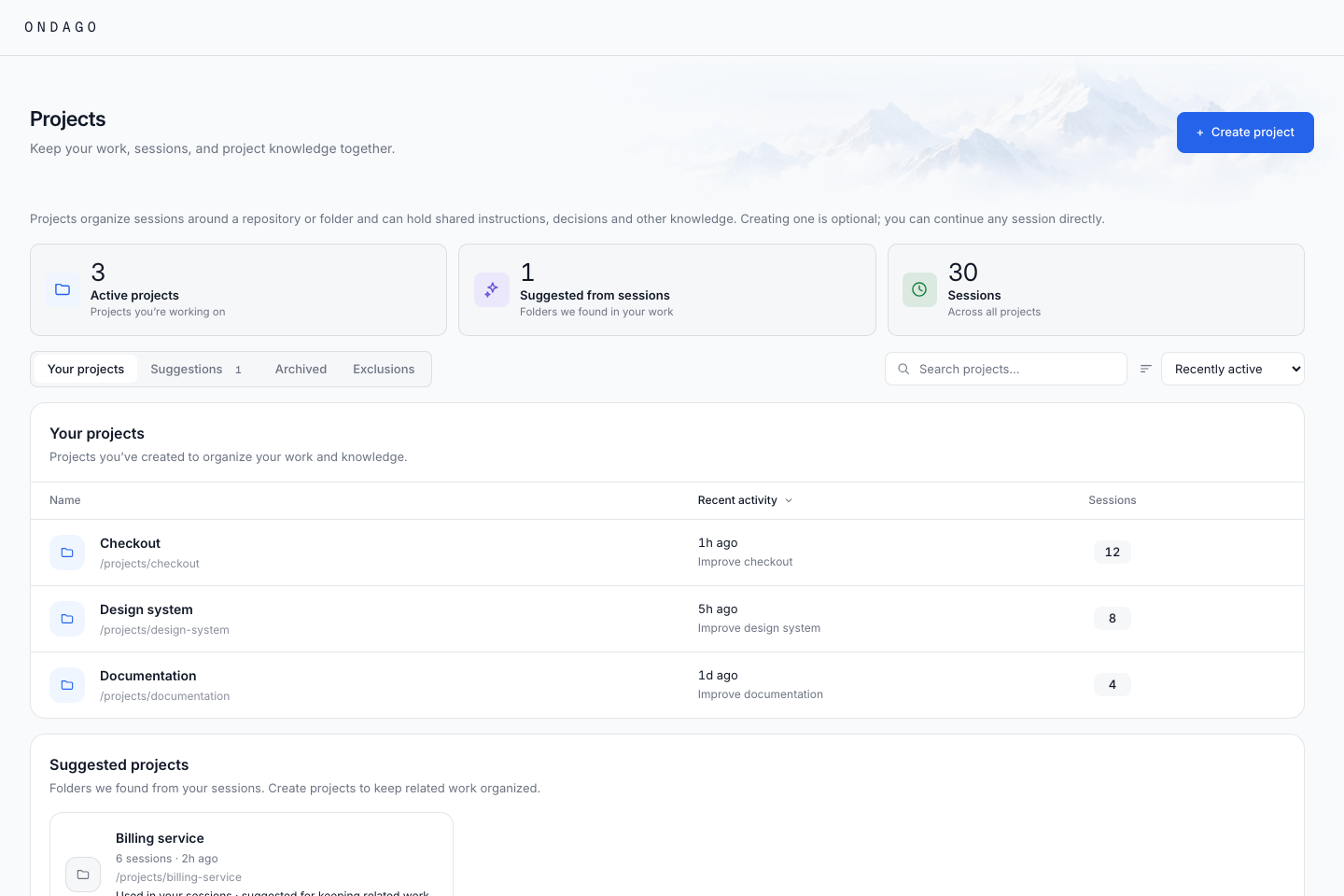
Open Projects in Desktop or the Web app. Your created projects appear separately from suggested folders found in recent sessions. Search by project name, or change the sort order to find recent work.
- Create a project, or select a suggested folder.
- Check the folder or repository identity and give the project a clear name.
- Add a brief describing its goals and context.
- Open the project to see related sessions and knowledge.
Creating a project organizes the work; it does not start an agent. Archiving a project keeps its sessions and knowledge.
Read project sessions#
View planned changes for Read project sessions. Availability depends on the released app and host versions.
Opt out of project sessions#
View planned changes for Opt out of project sessions. Availability depends on the released app and host versions.
Choose project maintainers#
Workspace owners and admins can open a project’s Settings tab and use the Project maintainers table. Each row names a workspace member; the Maintainer checkbox gives that person permission to edit project settings, archive the project, and publish project knowledge when knowledge is enabled.
Select or clear the checkbox beside a member, then choose Save settings to apply the change. Workspace owners and admins keep these permissions even when their checkbox is cleared.
Build useful project knowledge#
Project knowledge is the project-specific part of Brain, Ondago’s knowledge system. It holds instructions, decisions, skills, and reference documents. Open View all knowledge from the project to read or edit it.
Use Import project knowledge to scan a folder or repository and choose which files to add to a draft. Review the suggested content and any skipped-file warnings before importing. You can also add an entry directly or save a useful finding from a session when that action is available.
Keep entries focused: a testing convention, an architecture decision, or a short explanation of how to run the project is more useful than an unreviewed conversation dump. Saving a finding does not grant access to its source conversation.
Keep folders out with exclusion rules#
View planned changes for Keep folders out with exclusion rules. Availability depends on the released app and host versions.
Draft instructions for a project that has none#
When a project scan finds no agent instructions, Ondago can suggest Working agreements.md, marked Suggested by Ondago. In an existing project without instructions, choose Draft starter instructions to open the import review.
- Scan the project folder or repository.
- Open the suggested working agreements and check the listed commands, conventions, and project-specific questions. The draft derives available commands from scanned project files; fill in details that only your team knows.
- Review any suggested security, design, or data and API guides. These are reference documents selected for the project’s detected tooling.
- Edit the suggestions or deselect anything you do not want, then save the chosen entries to the draft.
- Review and publish when ready.
A suggestion is a proposed document, not a claim that the file already exists in your repository. Accepting it into a draft does not immediately write agent files or change a running session. Projects that already have instructions do not receive this starter offer.
Write published knowledge into agent files#
Open the project and choose Write agent files to put its published knowledge in the files your agents read: CLAUDE.md, AGENTS.md, GEMINI.md, or .github/copilot-instructions.md.
- Publish the project’s knowledge first. If the panel finds unpublished changes, review them before using Publish and continue.
- Select the computer and project folder offered by the panel. From a browser, Ondago Desktop must be online on the computer with that folder.
- Review each file’s status and any agent-specific adaptations. Resolve blocked items in project knowledge; accept a lossy adaptation only if the result is suitable for that agent.
- Select the files to write, choose Write files, and check the result for each file.
Ondago backs up existing files and adds or updates its managed block while preserving content outside it. Local edits inside a managed block stop the write so you can resolve them first. A partial failure is reported per file; check which writes succeeded before retrying.
Writing files does not launch an agent or replace a running session’s pinned knowledge snapshot. Publishing future changes and applying them remain separate actions.
Build on workspace knowledge#
Projects inherit published workspace knowledge, maintained in Settings → Workspace → Knowledge. Add project context on top of that shared guidance. To make an exception, use Manage files to replace or disable an optional inherited entry for this project; required workspace entries cannot be overridden.
For example, keep the workspace’s required testing guidance, replace an optional setup instruction with this project’s setup steps, and add the project’s architecture decisions. Use Preview session knowledge under View options to inspect the combined result before publishing. Learn how inheritance and overrides work.
Review, then publish#
Saving a draft and publishing knowledge are separate steps. Review the changes and publish when they are ready for other sessions to use. The project shows whether knowledge is published or still a draft.
New sessions can use published workspace and project knowledge. Existing sessions keep their original snapshot; publishing a revision does not silently change an agent that is already working. Editing and publishing depend on your workspace role and project permissions.
Preview knowledge from the terminal#
With a downloaded Brain packet, preview how it will apply to the destination agent:
ondago brain preview -file brain.json -cwd ~/projects/example-app -tool codexReview the result before applying it. The Brain command reference covers application, updates, and checking for local changes.