
Ondago Cloud may appear as Secure Cloud in your installed app.
To use your ChatGPT subscription in Ondago Cloud, see Connect ChatGPT for cloud Codex.
Desktop setup connects the Ondago CLI automatically. Keep setup open until the computer is connected. If setup pauses, use its retry action. A verified desktop can connect the CLI without a second email code; verification is still required when trusted device access is unavailable.
When creating an account with email, enter your password twice. Use Show or Hide beside each password field to check what you typed.
Desktop uses the same encryption and device-access model as the CLI and Web app. Registering this computer and securing recovery access are part of setup. Read about security at Ondago.
Install on macOS or Windows#
Install Desktop and the CLI together using the commands below, then follow setup in the app. Start free with Free / Personal.
The combined installer installs the CLI and attempts to install the Desktop app. Desktop uses the CLI to connect to sessions on your computer.
macOS
curl -fsSL https://public.ondago.ai/install.sh | shOpen Ondago from Applications (or the app location printed by the installer).
Windows
irm https://public.ondago.ai/install.ps1 | iexComplete any installer prompts and launch Ondago from the Start menu. If the installer reports that only the CLI was installed, resolve the reported Desktop download or installation problem and rerun it.
There is no Linux Desktop build in this project. On Linux, use the CLI with the Web app.
Download the app directly
To install from a browser instead of a terminal, open ondago.ai/download. It always offers the current release: a disk image for Apple Silicon or Intel Macs, or an installer for Windows x64 or ARM64. Desktop setup then connects the CLI.
Connect this computer#
View planned changes for Connect this computer. Availability depends on the released app and host versions.
View planned changes for explore your connected workspace. Availability depends on the released app and host versions.
View planned changes for onboarding email updates. Availability depends on the released app and host versions.
View planned changes for clearer history choices. Availability depends on the released app and host versions.
Find and open a session#
View planned changes for Find and open a session. Availability depends on the released app and host versions.
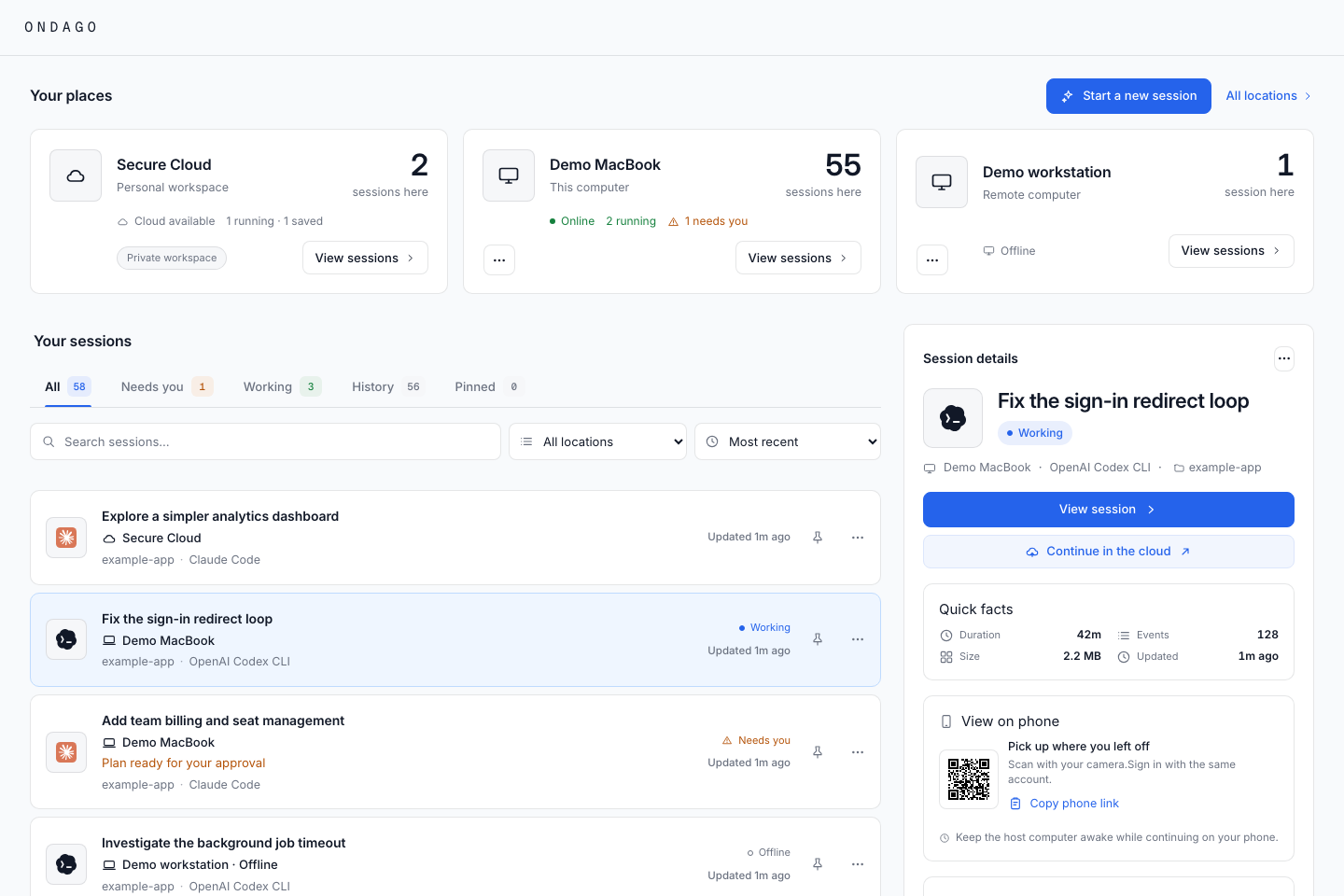
Discuss before implementing#
Choose Agent Discussion in the new-session launcher to compare ideas from multiple agents or models. You decide which participant builds the agreed direction. Follow the Agent Discussion guide.
Work with your sessions#
View planned changes for Work with your sessions. Availability depends on the released app and host versions.
Scan before cleaning up#
Open Cleanup to review old sessions, agent processes, and Git worktrees before selecting anything to remove. A scan itself deletes nothing.
Read recent conversations after leaving this computer#
View planned changes for Read recent conversations after leaving this computer. Availability depends on the released app and host versions.
Updates and setup checks#
View planned changes for Updates and setup checks. Availability depends on the released app and host versions.
View planned changes for check the upload before handoff. Availability depends on the released app and host versions.
View planned changes for quicker handoff and terminal resume. Availability depends on the released app and host versions.